PulseCheck - Done
View Live Example
Overview
The PulseCheck Dashboard provides a comprehensive view of all metrics and feedback related to a specific PulseCheck. This page allows users to analyze customer sentiment, track key performance indicators, and identify trends across multiple dimensions.
Page Title
PulseCheck: {PulseCheck Name} | 360Pulse
Page Structure
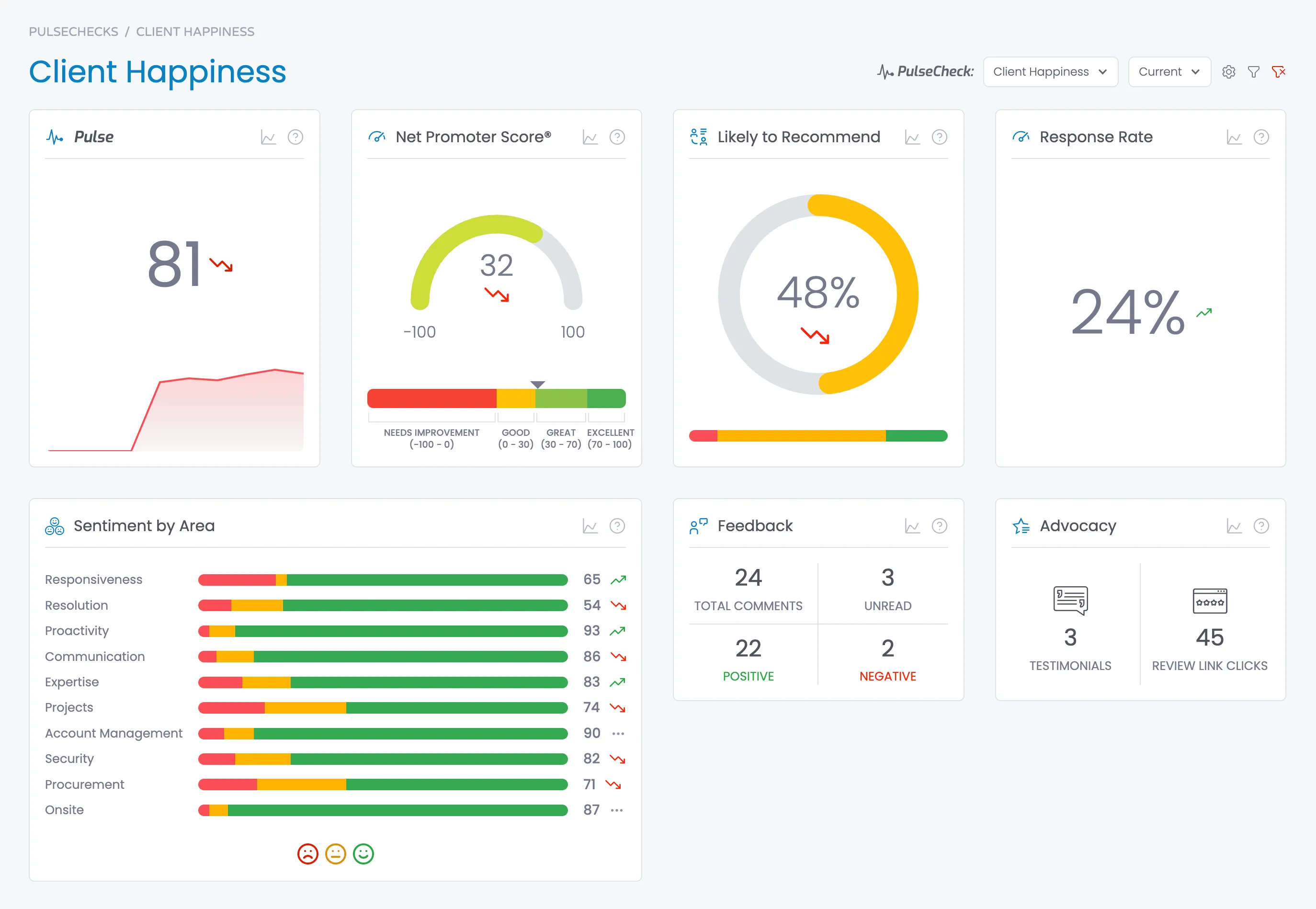
Page HTML
This is the HTML structure of the age excluding the tiles.
<section class="section">
    <div class="body-container w-container">
        <div class="page-header">
            <div class="w-layout-grid grid-2">
                <div class="page-header-left">
                    <div class="breadcrumbs">
                        <a href="/pulsechecks" class="breadcrumb">PulseChecks</a>
                        <div class="breadcrumb-divider">/</div>
                        <div class="breadcrumb">{PulseCheck name}</div>
                    </div>
                    <div class="flex space-between">
                        <h1>{PulseCheck name}</h1>
                        <div class="flex">
                            <div class="dashboard-filter-container">
                                <div class="flex full">
                                    <div class="pulsecheck-mark">
                                        <div class="icon _20">
                                            <svg fill="currentColor" width="20" height="20" viewbox="0 0 512 512" xmlns="http://www.w3.org/2000/svg"><path d="M432,272a48.09,48.09,0,0,0-45.25,32H347.53l-28.35-85.06a16,16,0,0,0-30.56.66L244.11,375.36l-52.33-314a16,16,0,0,0-31.3-1.25L99.51,304H48a16,16,0,0,0,0,32h64a16,16,0,0,0,15.52-12.12l45.34-181.37,51.36,308.12A16,16,0,0,0,239.1,464c.3,0,.6,0,.91,0a16,16,0,0,0,15.37-11.6l49.8-174.28,15.64,46.94A16,16,0,0,0,336,336h50.75A48,48,0,1,0,432,272Z"></path></svg>
                                        </div>
                                        <div class="pulse-check-picker-name">PulseCheck:</div>
                                    </div>
                                    <div data-delay="0" data-hover="false" class="dropdown w-dropdown">
                                        <div class="dropdown-closed w-dropdown-toggle">
                                            <div class="dropdown-arrow w-icon-dropdown-toggle"></div>
                                            <div class="dropdown-text">{Selected PulseCheck name}</div>
                                        </div>
                                        <div class="dropdown-open left w-dropdown-list">
                                            <div class="dropdown-options">

                                                <!-- START PulseCheck Option - Repeat for each PulseCheck -->
                                                <a class="dropdown-option w-inline-block">
                                                    <div class="dropdown-option-selected-icon-container">
                                                        <div class="dropdown-option-selected-icon {if selected add .selected class here}">
                                                            <svg xmlns="http://www.w3.org/2000/svg" width="24" height="24" viewbox="0 0 24 24" fill="none" stroke="currentColor" stroke-width="4" stroke-linecap="round" stroke-linejoin="round"><polyline points="20 6 9 17 4 12"></polyline></svg>
                                                        </div>
                                                    </div>
                                                    <div class="dropdown-option-text">{PulseCheck name}</div>
                                                </a>
                                                <!-- END PulseCheck Option -->

                                            </div>
                                        </div>
                                    </div>
                                </div>
                                <div class="flex full">
                                    <div data-delay="0" data-hover="false" class="dropdown w-dropdown">
                                        <div class="dropdown-closed w-dropdown-toggle">
                                            <div class="dropdown-arrow w-icon-dropdown-toggle"></div>
                                            <div class="dropdown-text">{Selected PulseCheck Instance}</div>
                                        </div>
                                        <div class="dropdown-open left w-dropdown-list">
                                            <div class="dropdown-options">

                                                <!-- START Current PulseCheck - use name "Current" for active/open PulseCheck instance. Selected by default -->
                                                <a class="dropdown-option w-inline-block">
                                                    <div class="dropdown-option-selected-icon-container">
                                                        <div class="dropdown-option-selected-icon {if selected include .selected class here}">
                                                            <svg xmlns="http://www.w3.org/2000/svg" width="24" height="24" viewbox="0 0 24 24" fill="none" stroke="currentColor" stroke-width="4" stroke-linecap="round" stroke-linejoin="round"><polyline points="20 6 9 17 4 12"></polyline></svg>
                                                        </div>
                                                    </div>
                                                    <div class="dropdown-option-text">Current</div>
                                                </a>
                                                <!-- END Current  PulseCheck -->

                                                <!-- START Past PulseChecks - Repeat for each previous pulsecheck instance -->
                                                <a class="dropdown-option w-inline-block">
                                                    <div class="dropdown-option-selected-icon-container">
                                                        <div class="dropdown-option-selected-icon {if selected include .selected class here}">
                                                            <svg xmlns="http://www.w3.org/2000/svg" width="24" height="24" viewbox="0 0 24 24" fill="none" stroke="currentColor" stroke-width="4" stroke-linecap="round" stroke-linejoin="round"><polyline points="20 6 9 17 4 12"></polyline></svg>
                                                        </div>
                                                    </div>
                                                    <div class="dropdown-option-text">{PulseCheck Instance Name e.g. February 2025}</div>
                                                </a>
                                                <!-- END Past PulseChecks -->

                                            </div>
                                        </div>
                                    </div>
                                    <div class="flex">
                                        <a id="settings" href="#" class="pulsecheck-filter-button w-inline-block">
                                            <div class="icon _16">
                                                <svg width="16" height="16" fill="currentColor" xmlns="http://www.w3.org/2000/svg" viewbox="0 0 32 32"><path d="M27,16.76c0-.25,0-.5,0-.76s0-.51,0-.77l1.92-1.68A2,2,0,0,0,29.3,11L26.94,7a2,2,0,0,0-1.73-1,2,2,0,0,0-.64.1l-2.43.82a11.35,11.35,0,0,0-1.31-.75l-.51-2.52a2,2,0,0,0-2-1.61H13.64a2,2,0,0,0-2,1.61l-.51,2.52a11.48,11.48,0,0,0-1.32.75L7.43,6.06A2,2,0,0,0,6.79,6,2,2,0,0,0,5.06,7L2.7,11a2,2,0,0,0,.41,2.51L5,15.24c0,.25,0,.5,0,.76s0,.51,0,.77L3.11,18.45A2,2,0,0,0,2.7,21L5.06,25a2,2,0,0,0,1.73,1,2,2,0,0,0,.64-.1l2.43-.82a11.35,11.35,0,0,0,1.31.75l.51,2.52a2,2,0,0,0,2,1.61h4.72a2,2,0,0,0,2-1.61l.51-2.52a11.48,11.48,0,0,0,1.32-.75l2.42.82a2,2,0,0,0,.64.1,2,2,0,0,0,1.73-1L29.3,21a2,2,0,0,0-.41-2.51ZM25.21,24l-3.43-1.16a8.86,8.86,0,0,1-2.71,1.57L18.36,28H13.64l-.71-3.55a9.36,9.36,0,0,1-2.7-1.57L6.79,24,4.43,20l2.72-2.4a8.9,8.9,0,0,1,0-3.13L4.43,12,6.79,8l3.43,1.16a8.86,8.86,0,0,1,2.71-1.57L13.64,4h4.72l.71,3.55a9.36,9.36,0,0,1,2.7,1.57L25.21,8,27.57,12l-2.72,2.4a8.9,8.9,0,0,1,0,3.13L27.57,20Z" transform="translate(0 0)"></path><path d="M16,22a6,6,0,1,1,6-6A5.94,5.94,0,0,1,16,22Zm0-10a3.91,3.91,0,0,0-4,4,3.91,3.91,0,0,0,4,4,3.91,3.91,0,0,0,4-4A3.91,3.91,0,0,0,16,12Z" transform="translate(0 0)"></path></svg>
                                            </div>
                                        </a>
                                        <a id="filter" class="pulsecheck-filter-button w-inline-block">
                                            <div class="icon _16">
                                                <svg fill="currentColor" width="16" height="16" xmlns="http://www.w3.org/2000/svg" viewbox="0 0 32 32"><path d="M18,28H14a2,2,0,0,1-2-2V18.41L4.59,11A2,2,0,0,1,4,9.59V6A2,2,0,0,1,6,4H26a2,2,0,0,1,2,2V9.59A2,2,0,0,1,27.41,11L20,18.41V26A2,2,0,0,1,18,28ZM6,6V9.59l8,8V26h4V17.59l8-8V6Z"></path></svg>
                                            </div>
                                        </a>

                                        <!-- START Remove Filter button -->
                                        <a style="display:none {change to display:flex if a filter is applied}" id="remove-filter" href="#" class="pulsecheck-filter-button w-inline-block">
                                            <div class="icon _16 danger-text">
                                                <svg fill="currentColor" width="16" height="16" xmlns="http://www.w3.org/2000/svg" viewbox="0 0 32 32"><polygon points="30 11.414 28.586 10 24 14.586 19.414 10 18 11.414 22.586 16 18 20.585 19.415 22 24 17.414 28.587 22 30 20.587 25.414 16 30 11.414"><path d="M4,4A2,2,0,0,0,2,6V9.1709a2,2,0,0,0,.5859,1.4145L10,18v8a2,2,0,0,0,2,2h4a2,2,0,0,0,2-2V24H16v2H12V17.1709l-.5859-.5855L4,9.1709V6H24V8h2V6a2,2,0,0,0-2-2Z"></path></polygon></svg>
                                            </div>
                                        </a>
                                        <!-- END Remove Filter Button -->

                                    </div>
                                </div>
                            </div>
                        </div>
                    </div>
                </div>
            </div>
        </div>
        <div class="content-area">
            <div class="w-layout-grid dashboard-grid">

                <!-- TILES GO HERE -->

            </div>
        </div>
        <!-- START Common Page footer -->
        <div class="page-footer">
            <div id="poweredBy" class="powered-by">
                <p class="paragraph">Powered by <a href="https://www.userfirstdigital.com">User First</a>
                </p>
            </div>
            <div class="legal-links">
                <a href="#">Privacy</a>
                <a href="#">Terms of Use</a>
            </div>
        </div>
        <!-- END  Common Page footer -->

    </div>
</section>

<!-- SCRIPTS BELOW THIS -->
Header & Filtering

Left-side
Breadcrumbs
- Second segment (not a link) shows the name of the current PulseCheck being viewed
Page Title
- The name of the PulseCheck being viewed
Right-side
PulseCheck Selector
- Dropdown selector showing the current PulseCheck name (e.g. "Client Happiness")
- Click to expand and select between different PulseChecks in the system
- Changing this dropdown navigates to a completely different PulseCheck dashboard
Instance Filter
- "Current" dropdown allows users to filter data by different instances of the same PulseCheck
- Dropdown options
- Options include all previous instances of the PulseCheck
- Options are named using the Month and Year (e.g. "Janurary 2025") of a previous PulseCheck instance.
- This filter maintains the same PulseCheck but changes the dataset being viewed
- Selection should remain persistent in current session, but reset at next session.
- Session by time gap, not login session. -- Remove persistence after 2 hours since last viewing this PulseCheck.
Gear Icon (button)
Filter Icon (button)
- The modal allows filtering by custom tags configured by the user
- Selected filter options filter the dataset of the current PulseCheck
- Selection should remain persistent in current session, but reset at next session.
- Session by time gap, not login session. -- Remove persistence after 2 hours since last viewing this PulseCheck.
Remove Filter Icon (button)
- Remove Filter icon is displayed conditionally when a filter is applied.
- Clicking the Remove Filter icon removes all applied filters. (from the filter modal)
Functionality
- PulseCheck selector completely changes the dashboard context to a different PulseCheck
- Instance filter maintains the same PulseCheck but changes the specific instance/timeframe
- Settings applies specifically to the configuration of the current PulseCheck
- Filter modal provides custom tag-based filtering capabilities for advanced data analysis
Dashboard Tiles
Tiles Order
Metric Tiles
The metrics tiles go at the top above the results table:
- Pulse
- Net Promoter Score
- Likely to REcommend
- Response Rate
- Sentiment by Area
- Feedback
- Advocacy
Results Table
The results table comes next after the Metric tiles
Segment List Tiles
Segment List tiles (top 5) come after the results table.
- Most Happy
- Most Improved
- New Advocates
- Most At-Rick
- Most Declined
- Lost Advocates
Pulse Tile
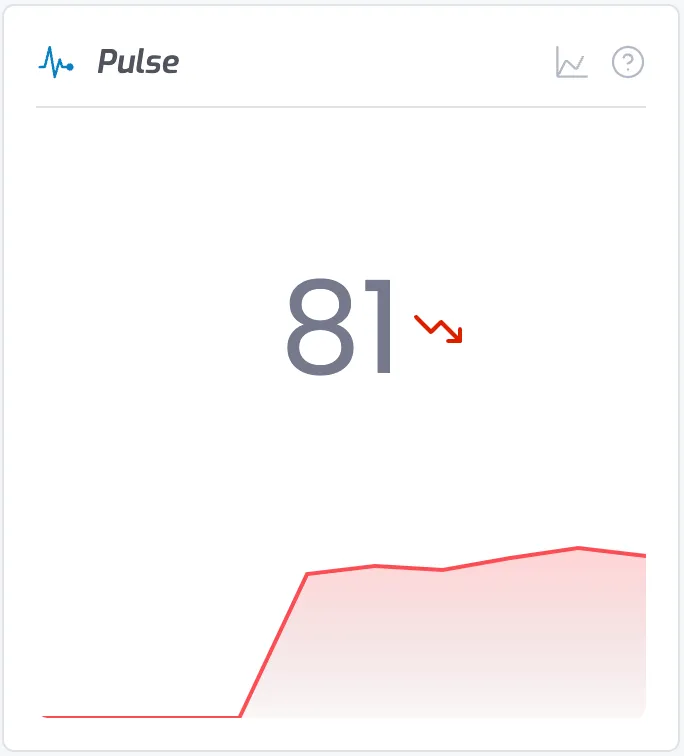
Details
- Displays overall Pulse score (0-100 scale)
- Shows trend indicator (up/down arrow)
- Includes historical line graph showing performance over time
- Primary health indicator for the PulseCheck
- Aggregates feedback from multiple sources
Data
Pulse Score of PulseCheck instances
- Pulsecheck being viewed + up to 11 preceeding PulseChecks (if they exist)
- It's important we set the starting point to be the PulseCheck being viewed not the active so it updates appropriately when the user is viewing a different PulseCheck instance.
Tile HTML
<div id="pulse-score" class="dashboard-tile">
<div class="dashboard-card-header">
<div class="dashboard-tile-heading-container">
<div class="icon _20 brand-text">
<svg fill="currentColor" width="32" height="32" viewbox="0 0 512 512" xmlns="http://www.w3.org/2000/svg"><path d="M432,272a48.09,48.09,0,0,0-45.25,32H347.53l-28.35-85.06a16,16,0,0,0-30.56.66L244.11,375.36l-52.33-314a16,16,0,0,0-31.3-1.25L99.51,304H48a16,16,0,0,0,0,32h64a16,16,0,0,0,15.52-12.12l45.34-181.37,51.36,308.12A16,16,0,0,0,239.1,464c.3,0,.6,0,.91,0a16,16,0,0,0,15.37-11.6l49.8-174.28,15.64,46.94A16,16,0,0,0,336,336h50.75A48,48,0,1,0,432,272Z"></path></svg>
</div>
<h2 class="dashboard-card-heading brand">Pulse</h2>
</div>
<div class="flex">
<a data-tippy-content="View trend chart" href="{link to view pulse trend report}">
<div data-tippy-content="View trend chart" class="dashboard-tile-details">
<svg width="32" height="32" fill="currentColor" xmlns="http://www.w3.org/2000/svg" viewbox="0 0 32 32"><path d="M4.67,28l6.39-12,7.3,6.49a2,2,0,0,0,1.7.47,2,2,0,0,0,1.42-1.07L27,10.9,25.18,10,19.69,21l-7.3-6.49A2,2,0,0,0,10.71,14a2,2,0,0,0-1.42,1L4,25V2H2V28a2,2,0,0,0,2,2H30V28Z" transform="translate(0 0)"></path></svg>
</div>
</a>
<div data-tippy-content="<p>Pulse is your overall sentiment score, like a health check for your organization. It's a number out of 100, with higher scores meaning more positive feedback.</p> <p>The arrow shows if sentiment is improving or getting worse compared to the previous period.</p> <ul> <li>A strong Pulse score indicates overall satisfaction, which can lead to increased engagement and positive outcomes</li> <li>A declining score is a warning sign to investigate potential issues</li> </ul> <p>Pulse aggregates feedback from multiple sources to give you a comprehensive view of organizational sentiment at a glance.</p>" class="dashboard-tile-help">
<svg xmlns="http://www.w3.org/2000/svg" width="24" height="24" viewbox="0 0 24 24" fill="none" stroke="currentColor" stroke-width="1.5" stroke-linecap="round" stroke-linejoin="round"><circle cx="12" cy="12" r="10"></circle><path d="M9.09 9a3 3 0 0 1 5.83 1c0 2-3 3-3 3"></path><line x1="12" y1="17" x2="12.01" y2="17"></line></svg>
</div>
</div>
</div>
<div class="dashboard-tile-content">
<div class="dashboard-pulse-score-container" data-tippy-content="Previous Score: {previous pulse score}">
<div>{pulse score of selected PulseCheck}</div>
<div class="dashboard-pulse-score-trend-icon-container">
<div class="icon _24 danger-text">
<svg xmlns="http://www.w3.org/2000/svg" width="512" height="512" viewbox="0 0 24 24" fill="none" stroke="currentColor" stroke-width="2" stroke-linecap="round" stroke-linejoin="round"><polyline points="23 18 13.5 8.5 8.5 13.5 1 6"></polyline><polyline points="17 18 23 18 23 12"></polyline></svg>
</div>
</div>
</div>
</div>
<div class="dashboard-tile-footer no-gap">
<div id="pulseScoreSparkline" class="dashboard-pulse-score-sparkline"></div>
</div>
</div>Tile Specific JS
*Requires ApexCharts.js
<!-- START Sparkline Area Chart for Pulse tile -->
<script>
    // Array of scores for each previous period (max 12 data previous), if no previous PulseChecks include 1 previous at 0 with label "No previous PulseChecks"
    const scoreData = [84, 67, 77, 79, 72, 76, 74, 80, 85, 81];

    // Array of name of each previous PulseCheck
    const pulseCheckTitles = [
      "June",
      "July 2024",
      "August 2024",
      "September 2024",
      "October 2024",
      "November 2024",
      "December 2024",
      "Janurary 2025",
      "Feburary 2025",
      "Current"
    ];

    // Determine the dynamic color based on the latest two entries.
    const latest = scoreData[scoreData.length - 1];
    const secondLast = scoreData[scoreData.length - 2];
    let seriesColor;
    if (latest >= secondLast) {
      seriesColor = "#34a853"; // Green
    } else {
      const dropPercentage = ((secondLast - latest) / secondLast) * 100;
      seriesColor = dropPercentage < 3 ? "#ffb300" : "#fa4d56";
    }

    // ApexCharts configuration.
    const options = {
      series: [
        {
          name: 'Pulse Score',
          data: scoreData
        }
      ],
      chart: {
        type: 'area',
        height: '100%',
        sparkline: { enabled: true }
      },
      colors: [seriesColor],
      stroke: {
        curve: 'straight',
        width: 2
      },
      fill: {
        type: 'gradient',
        gradient: {
          shade: 'dark',
          shadeIntensity: 0.5,
          opacityFrom: 0.5,
          opacityTo: 0.2,
          stops: [0, 100]
        }
      },
      tooltip: {
        marker: { show: false },
        x: {
          formatter: (val, opts) =>
            pulseCheckTitles[opts.dataPointIndex] ||
            `PulseCheck ${opts.dataPointIndex + 1}`
        },
        y: {
          formatter: val => Math.round(val)
        }
      },
      dataLabels: { enabled: false }
    };

    const chart = new ApexCharts(document.querySelector('#pulseScoreSparkline'), options);
    chart.render();
  </script>

<!-- END Sparkline Area Chart for Pulse Score -->
Drilldown
- The chart icon in the tiles header links to
Net Promoter Score® Tile
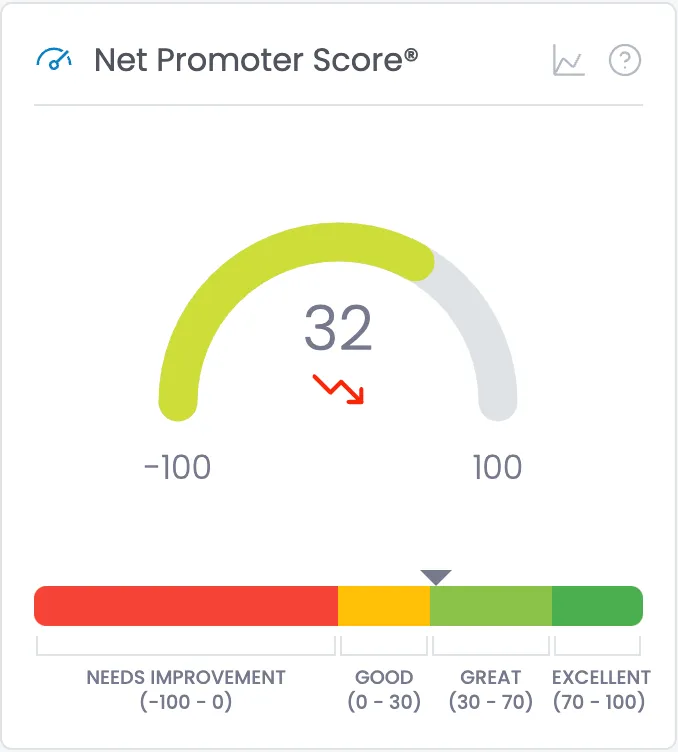
Details
- Displays NPS score (-100 to 100 scale) (be aware that displayed score is actual NPS score, while the arc is based on percentage. NPS score of 0 is center. This is intentional)
- Semi-circular gauge visualization that dynamically changes color based on score
- Legend at bottom showing what the score means, and a caret indicating where their current NPS is.
Data
- NPS Score of selected PulseCheck instance
- Uses the currently selected instance so it updates when people change the instance dropdown.
- NPS Score of the PulseCheck instance preceeding the selected PulseCheck
Data Implementation
Data is added by filling in the attributes on the <div> with class .dashboard-gauge
- Change the values for these
- data-chart-value-current="{NPS score of selected PulseCheck instance}"
- data-chart-value-previous="{NPS score of preceeding instance of PulseCheck}"
- Do not change the value for these:
- data-chart-type="gauge"
- data-chart-min="-100"
- data-chart-max="100"
- data-add-caret="true"
Tile HTML
<div id="net-promoter" class="dashboard-tile">
<div class="dashboard-card-header">
<div class="dashboard-tile-heading-container">
<div class="icon _20 brand-text">
<svg fill="currentColor" width="32" height="32" viewbox="0 0 32 32" xmlns="http://www.w3.org/2000/svg"><path d="M30,20a13.8535,13.8535,0,0,0-2.2291-7.5288l-1.4452,1.4453A11.8917,11.8917,0,0,1,28,20Z"></path><path d="M28,9.414,26.5859,8,18.019,16.5669A3.9521,3.9521,0,0,0,16,16a4,4,0,1,0,4,4,3.9533,3.9533,0,0,0-.5669-2.0191ZM16,22a2,2,0,1,1,2-2A2.0023,2.0023,0,0,1,16,22Z"></path><path d="M16,8a11.9086,11.9086,0,0,1,6.0833,1.6743l1.4536-1.4536A13.9773,13.9773,0,0,0,2,20H4A12.0137,12.0137,0,0,1,16,8Z"></path></svg>
</div>
<h2 class="dashboard-card-heading">Net Promoter Score®</h2>
</div>
<div class="flex">
<a data-tippy-content="View trend chart" href="#">
<div data-tippy-content="View trend chart" class="dashboard-tile-details">
<svg width="32" height="32" fill="currentColor" xmlns="http://www.w3.org/2000/svg" viewbox="0 0 32 32"><path d="M4.67,28l6.39-12,7.3,6.49a2,2,0,0,0,1.7.47,2,2,0,0,0,1.42-1.07L27,10.9,25.18,10,19.69,21l-7.3-6.49A2,2,0,0,0,10.71,14a2,2,0,0,0-1.42,1L4,25V2H2V28a2,2,0,0,0,2,2H30V28Z" transform="translate(0 0)"></path></svg>
</div>
</a>
<div data-tippy-content="<p>Net Promoter Score® (NPS) is one of the most widely used metrics for measuring customer loyalty and satisfaction across industries. The score ranges from -100 to 100.</p> <p>This popular benchmark is calculated by asking customers one key question: 'How likely are you to recommend our company to a friend or colleague?' on a scale of 0-10. Responses categorize customers as:</p> <ul> <li>Promoters (9-10): Loyal enthusiasts who fuel growth</li> <li>Passives (7-8): Satisfied but vulnerable to competitors</li> <li>Detractors (0-6): Unhappy customers who may damage your brand</li> </ul> <p>NPS falls into four ranges: Needs Improvement (-100 to 0), Good (0 to 30), Great (30 to 70), and Excellent (70 to 100). Many leading companies use NPS as a core metric for tracking customer experience and predicting business growth.</p>" class="dashboard-tile-help">
<svg xmlns="http://www.w3.org/2000/svg" width="24" height="24" viewbox="0 0 24 24" fill="none" stroke="currentColor" stroke-width="1.5" stroke-linecap="round" stroke-linejoin="round"><circle cx="12" cy="12" r="10"></circle><path d="M9.09 9a3 3 0 0 1 5.83 1c0 2-3 3-3 3"></path><line x1="12" y1="17" x2="12.01" y2="17"></line>
</svg>
</div>
</div>
</div>
<div class="dashboard-tile-content">
<div data-add-caret="true" data-chart-type="gauge" data-chart-min="-100" data-chart-max="100" data-chart-value-current="{NPS Score of selected PulseCheck}" data-chart-value-previous="{NPS Score of previous PulseCheck}" data-chart-extra-label="0" class="dashboard-gauge"></div>
</div>
<div class="dashboard-tile-footer no-gap">
<div class="nps-legend">
<div class="nps-legend-segment width-50">
<div class="nps-legend-bar red"></div>
<div class="nps-legend-bracket"></div>
<div class="nps-legend-label">Needs Improvement<br>(-100 - 0)</div>
</div>
<div class="nps-legend-segment width-15">
<div class="nps-legend-bar amber"></div>
<div class="nps-legend-bracket"></div>
<div class="nps-legend-label">Good<br>(0 - 30)</div>
</div>
<div class="nps-legend-segment width-20">
<div class="nps-legend-bar light-green"></div>
<div class="nps-legend-bracket"></div>
<div class="nps-legend-label">Great<br>(30 - 70)</div>
</div>
<div class="nps-legend-segment width-15">
<div class="nps-legend-bar green"></div>
<div class="nps-legend-bracket"></div>
<div class="nps-legend-label">Excellent<br>(70 - 100)</div>
</div>
</div>
</div>
</div>Tile Specific JS
<script>
(function() {
  // Map any value in [min..max] onto [0..100]
  function mapToFraction(value, minVal, maxVal) {
    const fraction = ((value - minVal) / (maxVal - minVal)) * 100;
    return Math.max(0, Math.min(100, fraction));
  }

  // Color function for the 0..100 fraction
  function getColorVariable(score) {
    if (score < 0 || score > 100) {
      return '--360pulse--score-color-neutral';
    }
    if (score >= 0 && score <= 9) {
      return '--360pulse--score-color-0-9';
    } else if (score >= 10 && score <= 19) {
      return '--360pulse--score-color-10-19';
    } else if (score >= 20 && score <= 29) {
      return '--360pulse--score-color-20-29';
    } else if (score >= 30 && score <= 39) {
      return '--360pulse--score-color-30-39';
    } else if (score >= 40 && score <= 49) {
      return '--360pulse--score-color-40-49';
    } else if (score >= 50 && score <= 59) {
      return '--360pulse--score-color-50-59';
    } else if (score >= 60 && score <= 69) {
      return '--360pulse--score-color-60-69';
    } else if (score >= 70 && score <= 79) {
      return '--360pulse--score-color-70-79';
    } else if (score >= 80 && score <= 89) {
      return '--360pulse--score-color-80-89';
    } else if (score >= 90 && score <= 99) {
      return '--360pulse--score-color-90-99';
    } else if (score === 100) {
      return '--360pulse--score-color-100';
    }
  }

  // Trend arrow icons
  const trendSVG = {
    up: `
      <svg xmlns="http://www.w3.org/2000/svg" width="16" height="16"
           viewBox="0 0 24 24" fill="none"
           stroke="var(--360pulse--trend-up)" stroke-width="2"
           stroke-linecap="round" stroke-linejoin="round">
        <polyline points="23 6 13.5 15.5 8.5 10.5 1 18"></polyline>
        <polyline points="17 6 23 6 23 12"></polyline>
      </svg>`,
    dn: `
      <svg xmlns="http://www.w3.org/2000/svg" width="16" height="16"
           viewBox="0 0 24 24" fill="none"
           stroke="var(--360pulse--trend-down)" stroke-width="2"
           stroke-linecap="round" stroke-linejoin="round">
        <polyline points="23 18 13.5 8.5 8.5 13.5 1 6"></polyline>
        <polyline points="17 18 23 18 23 12"></polyline>
      </svg>`,
    nc: `
      <svg xmlns="http://www.w3.org/2000/svg" width="16" height="16"
           viewBox="0 0 24 24" fill="none"
           stroke="var(--360pulse--trend-no-change)" stroke-width="2"
           stroke-linecap="round" stroke-linejoin="round">
        <circle cx="12" cy="12" r="1"></circle>
        <circle cx="19" cy="12" r="1"></circle>
        <circle cx="5" cy="12" r="1"></circle>
      </svg>`
  };

  // Build the gauge SVG string
  function buildGaugeSVG(currentVal, previousVal, minVal, maxVal) {
    const fraction = mapToFraction(currentVal, minVal, maxVal);
    const HALF_CIRCUMFERENCE = 157.08;
    const newDashOffset = HALF_CIRCUMFERENCE * (1 - fraction / 100);
    const colorVar = getColorVariable(fraction);

    // Determine trend direction
    let trendKey;
    if (currentVal > previousVal) {
      trendKey = 'up';
    } else if (currentVal < previousVal) {
      trendKey = 'dn';
    } else {
      trendKey = 'nc';
    }
    const trendArrow = trendSVG[trendKey];

    return `
<svg
  width="15rem"
  height="9.5rem"
  viewBox="0 0 120 95"
  preserveAspectRatio="xMidYMid meet"
>
  <!-- Background arc -->
  <path
    d="M 10,60 A 50,50 0 0,1 110,60"
    fill="none"
    stroke="var(--brand-colors--gray-200)"
    stroke-width="0.76rem"
    stroke-linecap="round"
  />

  <!-- Colored arc -->
  <path
    id="colored-arc"
    d="M 10,60 A 50,50 0 0,1 110,60"
    fill="none"
    stroke="var(${colorVar})"
    stroke-width="0.76rem"
    stroke-dasharray="157.08"
    stroke-dashoffset="157.08"
    stroke-linecap="round"
  >
    <animate
      attributeName="stroke-dashoffset"
      from="157.08"
      to="${newDashOffset}"
      dur="500ms"
      fill="freeze"
      begin="indefinite"
    />
  </path>

  <!-- Center value -->
  <text
    x="60"
    y="38"
    text-anchor="middle"
    dy=".3em"
    font-size="1.2rem"
    fill="currentColor"
  >
    ${currentVal}
  </text>

  <!-- Trend arrow -->
  <g transform="translate(52,48)">
    ${trendArrow}
  </g>

  <!-- Min/max labels with 1rem gap from arc -->
  <text
    x="10"
    y="84"
    text-anchor="middle"
    font-size="0.65rem"
    fill="currentColor"
  >
    ${minVal}
  </text>
  <text
    x="110"
    y="84"
    text-anchor="middle"
    font-size="0.65rem"
    fill="currentColor"
  >
    ${maxVal}
  </text>
</svg>
    `;
  }

  // Add a caret to the NPS legend based on score
  function addCaretToLegend(score, minVal, maxVal, gaugeDiv) {
    // Find the appropriate legend element
    let dashboardTile = gaugeDiv.closest('.dashboard-tile, [data-component="Dashboard Tile"]');
    let legendElement = null;

    if (dashboardTile) {
      legendElement = dashboardTile.querySelector('.nps-legend');
    }

    if (!legendElement) {
      legendElement = document.querySelector('.nps-legend');
    }

    if (!legendElement) {
      console.warn('NPS Legend element not found');
      return;
    }

    // Remove any existing carets
    const existingCarets = legendElement.querySelectorAll('.nps-caret');
    existingCarets.forEach(caret => caret.remove());

    // Create and style the caret
    const caret = document.createElement('div');
    caret.className = 'nps-caret';

    caret.style.position = 'absolute';
    caret.style.top = '0';
    caret.style.width = '0';
    caret.style.height = '0';
    caret.style.borderLeft = '8px solid transparent';
    caret.style.borderRight = '8px solid transparent';
    caret.style.borderTop = '8px solid currentColor';
    caret.style.transform = 'translateY(-100%)';
    caret.style.zIndex = '2';

    // Position caret based on score
    const percentage = ((score - minVal) / (maxVal - minVal)) * 100;
    caret.style.left = `calc(${percentage}% - 8px)`;

    // Add caret to legend
    legendElement.appendChild(caret);

    // Ensure legend has relative positioning
    if (window.getComputedStyle(legendElement).position !== 'relative') {
      legendElement.style.position = 'relative';
    }
  }

  // Process all gauge elements
  document.querySelectorAll('div[data-chart-type="gauge"]').forEach(div => {
    // Get gauge parameters
    const minVal = parseFloat(div.getAttribute('data-chart-min')) || -100;
    const maxVal = parseFloat(div.getAttribute('data-chart-max')) || 100;
    const currentVal = parseFloat(div.getAttribute('data-chart-value-current')) || 0;
    const previousVal = parseFloat(div.getAttribute('data-chart-value-previous')) || 0;

    // Generate and insert gauge
    div.innerHTML = buildGaugeSVG(currentVal, previousVal, minVal, maxVal);

    // Add tooltip
    div.setAttribute('data-tippy-content', `Previous Score: ${previousVal}`);

    // Start animation
    const arc = div.querySelector('#colored-arc');
    if (arc) {
      const animateElem = arc.querySelector('animate');
      if (animateElem && typeof animateElem.beginElement === 'function') {
        arc.getBoundingClientRect();  // force reflow
        animateElem.beginElement();
      }
    }

    // Add caret if specified
    setTimeout(() => {
      if (div.getAttribute('data-add-caret') === 'true') {
        addCaretToLegend(currentVal, minVal, maxVal, div);
      }
    }, 100);
  });
})();
</script>
Drilldown
- The chart icon in the tiles header links to
Likely to Recommend Tile
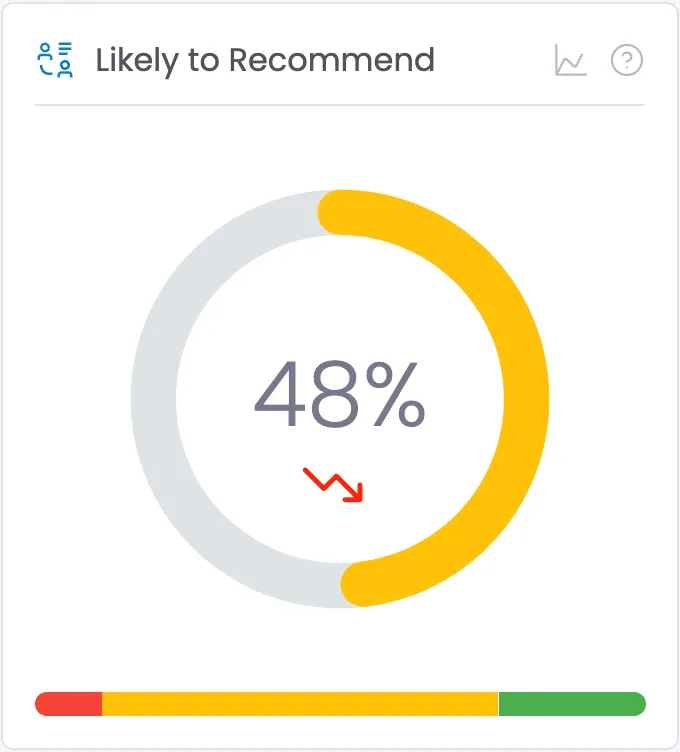
Details
- Displays percentage of respondents likely to recommend
- Circular gauge visualization with trend indicator
- NPS breakdown into color-coded spectrum for context
- Detractors % red
- Passives % amber
- Promoters % green
Data
- Gets the NPS Breakdown from the selected PulseCheck Instance, and the instance preceding it:
- # Promoters
- # Passives
- # Detractors
- Calculate for selected and previous PulseCheck
- % Promoters: (Promoters / (Promoters + Passives + Detractors)) * 100
- % Passives: (Passives / (Promoters + Passives + Detractors)) * 100
- % Detractors: (Detractors / (Promoters + Passives + Detractors)) * 100
- Uses the currently selected instance so it updates when people change the instance dropdown.
Tile HTML
<div id="recommend" class="dashboard-tile">
<div class="dashboard-card-header">
<div class="dashboard-tile-heading-container">
<div class="icon _20 brand-text">
<svg xmlns="http://www.w3.org/2000/svg" fill="currentColor" width="32" height="32" viewbox="0 0 32 32"><path d="M27,25H21a3,3,0,0,0-3,3v2h2V28a1,1,0,0,1,1-1h6a1,1,0,0,1,1,1v2h2V28A3,3,0,0,0,27,25Z" transform="translate(0 0)"></path><path d="M20,20a4,4,0,1,0,4-4A4,4,0,0,0,20,20Zm6,0a2,2,0,1,1-2-2A2,2,0,0,1,26,20Z" transform="translate(0 0)"></path><path d="M6,21V20H4v1a7,7,0,0,0,7,7h3V26H11A5,5,0,0,1,6,21Z" transform="translate(0 0)"></path><rect x="19" y="10" width="7" height="2"></rect><rect x="19" y="6" width="10" height="2"></rect><rect x="19" y="2" width="10" height="2"></rect><path d="M11,11H5a3,3,0,0,0-3,3v2H4V14a1,1,0,0,1,1-1h6a1,1,0,0,1,1,1v2h2V14A3,3,0,0,0,11,11Z" transform="translate(0 0)"></path><path d="M8,10A4,4,0,1,0,4,6,4,4,0,0,0,8,10ZM8,4A2,2,0,1,1,6,6,2,2,0,0,1,8,4Z" transform="translate(0 0)"></path></svg>
</div>
<h2 class="dashboard-card-heading">Likely to Recommend</h2>
</div>
<div class="flex">
<a data-tippy-content="View trend chart" href="#">
<div data-tippy-content="View trend chart" class="dashboard-tile-details">
<svg width="32" height="32" fill="currentColor" xmlns="http://www.w3.org/2000/svg" viewbox="0 0 32 32"><path d="M4.67,28l6.39-12,7.3,6.49a2,2,0,0,0,1.7.47,2,2,0,0,0,1.42-1.07L27,10.9,25.18,10,19.69,21l-7.3-6.49A2,2,0,0,0,10.71,14a2,2,0,0,0-1.42,1L4,25V2H2V28a2,2,0,0,0,2,2H30V28Z" transform="translate(0 0)"></path></svg>
</div>
</a>
<div data-tippy-content="<p>This metric shows the percentage of respondents who are highly likely to recommend your product or service to friends, family, or colleagues.</p> <p>The percentage represents customers who indicated a strong willingness to refer others to your business, a powerful indicator of customer satisfaction and loyalty.</p> <ul> <li>Higher percentages indicate more customers are willing to advocate for your brand</li> <li>Lower percentages suggest fewer customers feel confident referring others</li> <li>The trend arrow shows whether referral willingness is increasing or decreasing</li> </ul> <p>Customer referrals are valuable as they typically lead to higher quality leads, better retention, and reduced acquisition costs. Improving this metric often correlates with better business outcomes and growth.</p>" class="dashboard-tile-help">
<svg xmlns="http://www.w3.org/2000/svg" width="24" height="24" viewbox="0 0 24 24" fill="none" stroke="currentColor" stroke-width="1.5" stroke-linecap="round" stroke-linejoin="round"><circle cx="12" cy="12" r="10"></circle><path d="M9.09 9a3 3 0 0 1 5.83 1c0 2-3 3-3 3"></path><line x1="12" y1="17" x2="12.01" y2="17"></line></svg>
</div>
</div>
</div>
<div class="dashboard-tile-content">
<div class="dashboard-donut" data-chart-type="donut" data-chart-data-current="{NPS score of selected PulseCheck}" data-chart-data-previous="{NPS score of previous PulseCheck}"></div>
</div>
<div style="-webkit-transform:translate3d(0, 0, 0) scale3d(0, 1, 1) rotateX(0) rotateY(0) rotateZ(0) skew(0, 0);-moz-transform:translate3d(0, 0, 0) scale3d(0, 1, 1) rotateX(0) rotateY(0) rotateZ(0) skew(0, 0);-ms-transform:translate3d(0, 0, 0) scale3d(0, 1, 1) rotateX(0) rotateY(0) rotateZ(0) skew(0, 0);transform:translate3d(0, 0, 0) scale3d(0, 1, 1) rotateX(0) rotateY(0) rotateZ(0) skew(0, 0)" class="dashboard-stacked-horizontal-bar div">
<a style="width: {percentage detractors}" data-tippy-content="<b>{percentage detractors}<br>At Risk</b><br> <p>This segment represents the percentage of respondents who are unlikely to recommend your organization. They may share negative feedback about their experiences.</p>" href="#" class="dashboard-stacked-horizontal-bar-segment segment-1"></a>
<a style="width: {percentage passives}" data-tippy-content="<b>{percentage passives}<br>Unlikely to Recommend</b><br> <p>This segment represents the percentage of respondents who are satisfied but not enthusiastic about your organization. They typically won't actively recommend you to others.</p>" href="#" class="dashboard-stacked-horizontal-bar-segment segment-2"></a>
<a style="width: {percentage promoters}" data-tippy-content="<b>{percentage promoters}<br>Likely to Recommend</b><br> <p>This segment represents the percentage of respondents who are highly likely to recommend your organization. These loyal supporters are willing to refer others to you.</p>" href="#" class="dashboard-stacked-horizontal-bar-segment segment-3"></a>
</div>
</div>Tile Specific JS
<script>
// Initialize all donut charts on the page
function initAllDonutCharts() {
  // Find all donut charts
  const donutCharts = document.querySelectorAll('.dashboard-donut[data-chart-type="donut"]');

  // Initialize each donut chart
  donutCharts.forEach(initDonutChart);
}

// Initialize a single donut chart
function initDonutChart(donutChart) {
  // Get data from attributes
  const currentPercentage = parseInt(donutChart.getAttribute('data-chart-data-current') || '0', 10);
  const previousPercentage = parseInt(donutChart.getAttribute('data-chart-data-previous') || '0', 10);

  // Create SVG structure
  const svgNS = "http://www.w3.org/2000/svg";

  // Calculate circle values
  const radius = 50;
  const circleCircumference = 2 * Math.PI * radius;

  // Create SVG element
  const svg = document.createElementNS(svgNS, "svg");
  svg.setAttribute("width", "14rem");
  svg.setAttribute("height", "14rem");
  svg.setAttribute("viewBox", "0 0 120 120");

  // Create background circle
  const backgroundCircle = document.createElementNS(svgNS, "circle");
  backgroundCircle.setAttribute("cx", "60");
  backgroundCircle.setAttribute("cy", "60");
  backgroundCircle.setAttribute("r", radius.toString());
  backgroundCircle.setAttribute("fill", "none");
  backgroundCircle.setAttribute("stroke", "var(--brand-colors--gray-200)");
  backgroundCircle.setAttribute("stroke-width", "0.76rem");

  // Create foreground circle (arc)
  const arc = document.createElementNS(svgNS, "circle");
  arc.setAttribute("cx", "60");
  arc.setAttribute("cy", "60");
  arc.setAttribute("r", radius.toString());
  arc.setAttribute("fill", "none");
  arc.setAttribute("stroke", "var(--brand-colors--brand-600)");
  arc.setAttribute("stroke-width", "0.76rem");
  arc.setAttribute("stroke-dasharray", circleCircumference.toString());
  arc.setAttribute("stroke-dashoffset", circleCircumference.toString());
  arc.setAttribute("stroke-linecap", "round");
  arc.setAttribute("transform", "rotate(-90 60 60)");

  // Create text element
  const textElem = document.createElementNS(svgNS, "text");
  textElem.setAttribute("x", "60");
  textElem.setAttribute("y", "60");
  textElem.setAttribute("text-anchor", "middle");
  textElem.setAttribute("dy", ".3em");
  textElem.setAttribute("font-size", "1.5rem");
  textElem.setAttribute("fill", "currentColor");
  textElem.classList.add("donut-center-text");

  // Create trend arrow group
  const trendElem = document.createElementNS(svgNS, "g");
  trendElem.classList.add("donut-trend-arrow");
  trendElem.setAttribute("transform", "translate(50,75)");

  // Append all elements to SVG
  svg.appendChild(backgroundCircle);
  svg.appendChild(arc);
  svg.appendChild(textElem);
  svg.appendChild(trendElem);

  // Clear the container and append the new SVG
  donutChart.innerHTML = '';
  donutChart.appendChild(svg);

  // SVG arrow icons for trend
  const trendSVG = getTrendSVG();

  // Determine the trend
  let trend;
  if (currentPercentage > previousPercentage) {
    trend = trendSVG.up;
  } else if (currentPercentage < previousPercentage) {
    trend = trendSVG.dn;
  } else {
    trend = trendSVG.nc;
  }

  // Set the color based on the score
  const colorVar = getColorVariable(currentPercentage);
  arc.setAttribute('stroke', `var(${colorVar})`);

  // Calculate the new dash offset
  const newDashOffset = circleCircumference * (1 - (currentPercentage / 100));

  // Animate the donut
  animateDonut(arc, newDashOffset);

  // Update the center text
  textElem.textContent = `${currentPercentage}%`;

  // Insert the trend arrow
  trendElem.innerHTML = trend;
}

// Helper function to get trend SVG icons
function getTrendSVG() {
  return {
    up: `<svg xmlns="http://www.w3.org/2000/svg" width="16" height="16" viewBox="0 0 24 24" fill="none" stroke="var(--360pulse--trend-up)" stroke-width="2" stroke-linecap="round" stroke-linejoin="round">
           <polyline points="23 6 13.5 15.5 8.5 10.5 1 18"></polyline>
           <polyline points="17 6 23 6 23 12"></polyline>
         </svg>`,
    dn: `<svg xmlns="http://www.w3.org/2000/svg" width="16" height="16" viewBox="0 0 24 24" fill="none" stroke="var(--360pulse--trend-down)" stroke-width="2" stroke-linecap="round" stroke-linejoin="round">
           <polyline points="23 18 13.5 8.5 8.5 13.5 1 6"></polyline>
           <polyline points="17 18 23 18 23 12"></polyline>
         </svg>`,
    nc: `<svg xmlns="http://www.w3.org/2000/svg" width="16" height="16" viewBox="0 0 24 24" fill="none" stroke="var(--360pulse--trend-no-change)" stroke-width="2" stroke-linecap="round" stroke-linejoin="round">
           <circle cx="12" cy="12" r="1"></circle>
           <circle cx="19" cy="12" r="1"></circle>
           <circle cx="5" cy="12" r="1"></circle>
         </svg>`
  };
}

// Function to animate the donut chart
function animateDonut(arc, newDashOffset) {
  // Create a simple animation using requestAnimationFrame
  const startDashOffset = parseFloat(arc.getAttribute('stroke-dashoffset'));
  const startTime = performance.now();
  const duration = 500; // 500ms duration

  function animate(currentTime) {
    const elapsedTime = currentTime - startTime;
    const progress = Math.min(elapsedTime / duration, 1);

    // Easing function (ease-out)
    const easedProgress = 1 - Math.pow(1 - progress, 2);

    // Calculate current dashOffset
    const currentDashOffset = startDashOffset - (startDashOffset - newDashOffset) * easedProgress;

    // Update the arc
    arc.setAttribute('stroke-dashoffset', currentDashOffset);

    // Continue animation if not complete
    if (progress < 1) {
      requestAnimationFrame(animate);
    }
  }

  requestAnimationFrame(animate);
}

// Function to determine color variable based on score
function getColorVariable(score) {
  if (score < 0 || score > 100) {
    return '--360pulse--score-color-neutral';
  }
  if (score >= 0 && score <= 9) {
    return '--360pulse--score-color-0-9';
  } else if (score >= 10 && score <= 19) {
    return '--360pulse--score-color-10-19';
  } else if (score >= 20 && score <= 29) {
    return '--360pulse--score-color-20-29';
  } else if (score >= 30 && score <= 39) {
    return '--360pulse--score-color-30-39';
  } else if (score >= 40 && score <= 49) {
    return '--360pulse--score-color-40-49';
  } else if (score >= 50 && score <= 59) {
    return '--360pulse--score-color-50-59';
  } else if (score >= 60 && score <= 69) {
    return '--360pulse--score-color-60-69';
  } else if (score >= 70 && score <= 79) {
    return '--360pulse--score-color-70-79';
  } else if (score >= 80 && score <= 89) {
    return '--360pulse--score-color-80-89';
  } else if (score >= 90 && score <= 99) {
    return '--360pulse--score-color-90-99';
  } else if (score === 100) {
    return '--360pulse--score-color-100';
  }
}

// Run initialization when DOM is ready
if (document.readyState === "complete" || document.readyState === "interactive") {
  setTimeout(initAllDonutCharts, 1);
} else {
  document.addEventListener('DOMContentLoaded', initAllDonutCharts);
}
</script>
Response Rate Tile
Details
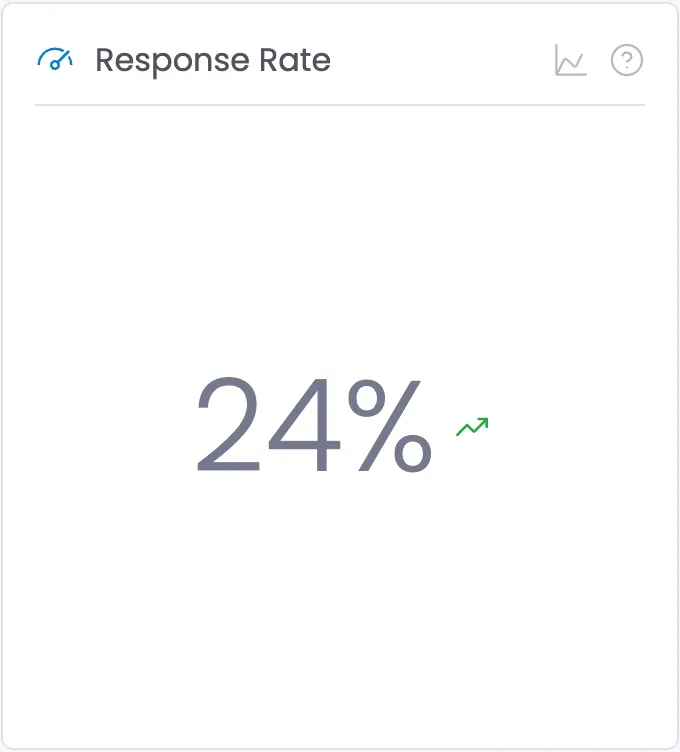
- Shows survey completion percentage
- Displays trend indicator
- Represents percentage of invited participants who completed the survey
Data
- Gets the Survey Completion % and Trend code from the selected PulseCheck Instance, and the completion % from the preceeding PulseCheck
Data Implementation
- Update the text in <div id="response-rate-percent">
- Change the style="display: none;" to "display: flex;" on the div with the .icon class.
Tile HTML
<div id="response-rate" class="dashboard-tile">
    <div class="dashboard-card-header">
        <div class="dashboard-tile-heading-container">
            <div class="icon _20 brand-text">
                <svg xmlns="http://www.w3.org/2000/svg" fill="currentColor" width="32" height="32" viewbox="0 0 32 32"><path d="M30,20a13.8535,13.8535,0,0,0-2.2291-7.5288l-1.4452,1.4453A11.8917,11.8917,0,0,1,28,20Z"></path><path d="M28,9.414,26.5859,8,18.019,16.5669A3.9521,3.9521,0,0,0,16,16a4,4,0,1,0,4,4,3.9533,3.9533,0,0,0-.5669-2.0191ZM16,22a2,2,0,1,1,2-2A2.0023,2.0023,0,0,1,16,22Z"></path><path d="M16,8a11.9086,11.9086,0,0,1,6.0833,1.6743l1.4536-1.4536A13.9773,13.9773,0,0,0,2,20H4A12.0137,12.0137,0,0,1,16,8Z"></path></svg>
            </div>
            <h2 class="dashboard-card-heading">Response Rate</h2>
        </div>
        <div class="flex">
            <a data-tippy-content="Click to see response rates for all PulseChecks." href="#">
                <div class="dashboard-tile-details">
                    <svg width="32" height="32" fill="currentColor" xmlns="http://www.w3.org/2000/svg" viewbox="0 0 32 32"><path d="M4.67,28l6.39-12,7.3,6.49a2,2,0,0,0,1.7.47,2,2,0,0,0,1.42-1.07L27,10.9,25.18,10,19.69,21l-7.3-6.49A2,2,0,0,0,10.71,14a2,2,0,0,0-1.42,1L4,25V2H2V28a2,2,0,0,0,2,2H30V28Z" transform="translate(0 0)"></path></svg>
                </div>
            </a>
            <div data-tippy-content="This shows the percentage of respondents who completed this PulseCheck." class="dashboard-tile-help">
                <svg xmlns="http://www.w3.org/2000/svg" width="24" height="24" viewbox="0 0 24 24" fill="none" stroke="currentColor" stroke-width="1.5" stroke-linecap="round" stroke-linejoin="round"><circle cx="12" cy="12" r="10"></circle><path d="M9.09 9a3 3 0 0 1 5.83 1c0 2-3 3-3 3"></path><line x1="12" y1="17" x2="12.01" y2="17"></line></svg>
            </div>
        </div>
    </div>
    <div class="dashboard-tile-content">
        <div id="response-rate-percent">{Response Percent (e.g. 24%)}</div>

<!-- SET APPROPRIATE ICON TO "display: flex;" -->

        <!-- START Up trend icon -->
        <div style="display: none;" class="icon _16">
            <svg xmlns="http://www.w3.org/2000/svg" width="16" height="16" viewBox="0 0 24 24" fill="none" stroke="var(--360pulse--trend-up)" stroke-width="2" stroke-linecap="round" stroke-linejoin="round"><polyline points="23 6 13.5 15.5 8.5 10.5 1 18"></polyline><polyline points="17 6 23 6 23 12"></polyline></svg>
        </div>
        <!-- END Up trend icon -->


        <!-- START Down trend icon -->
        <div style="display: none;" class="icon _16 success-text">
            <svg xmlns="http://www.w3.org/2000/svg" width="16" height="16" viewBox="0 0 24 24" fill="none" stroke="var(--360pulse--trend-down)" stroke-width="2" stroke-linecap="round" stroke-linejoin="round"><polyline points="23 18 13.5 8.5 8.5 13.5 1 6"></polyline><polyline points="17 18 23 18 23 12"></polyline></svg>
        </div>
        <!-- END Down trend icon -->


        <!-- START No Change trend icon -->
        <div style="display: none;" class="icon _16 success-text">
            <svg xmlns="http://www.w3.org/2000/svg" width="16" height="16" viewBox="0 0 24 24" fill="none" stroke="var(--360pulse--trend-no-change)" stroke-width="2" stroke-linecap="round" stroke-linejoin="round"><circle cx="12" cy="12" r="1"></circle><circle cx="19" cy="12" r="1"></circle><circle cx="5" cy="12" r="1"></circle></svg>
        </div>
        <!-- END No Change trend icon -->


    </div>
</div>
Tile Specific JS
None
Sentiment by Area Tile
Details
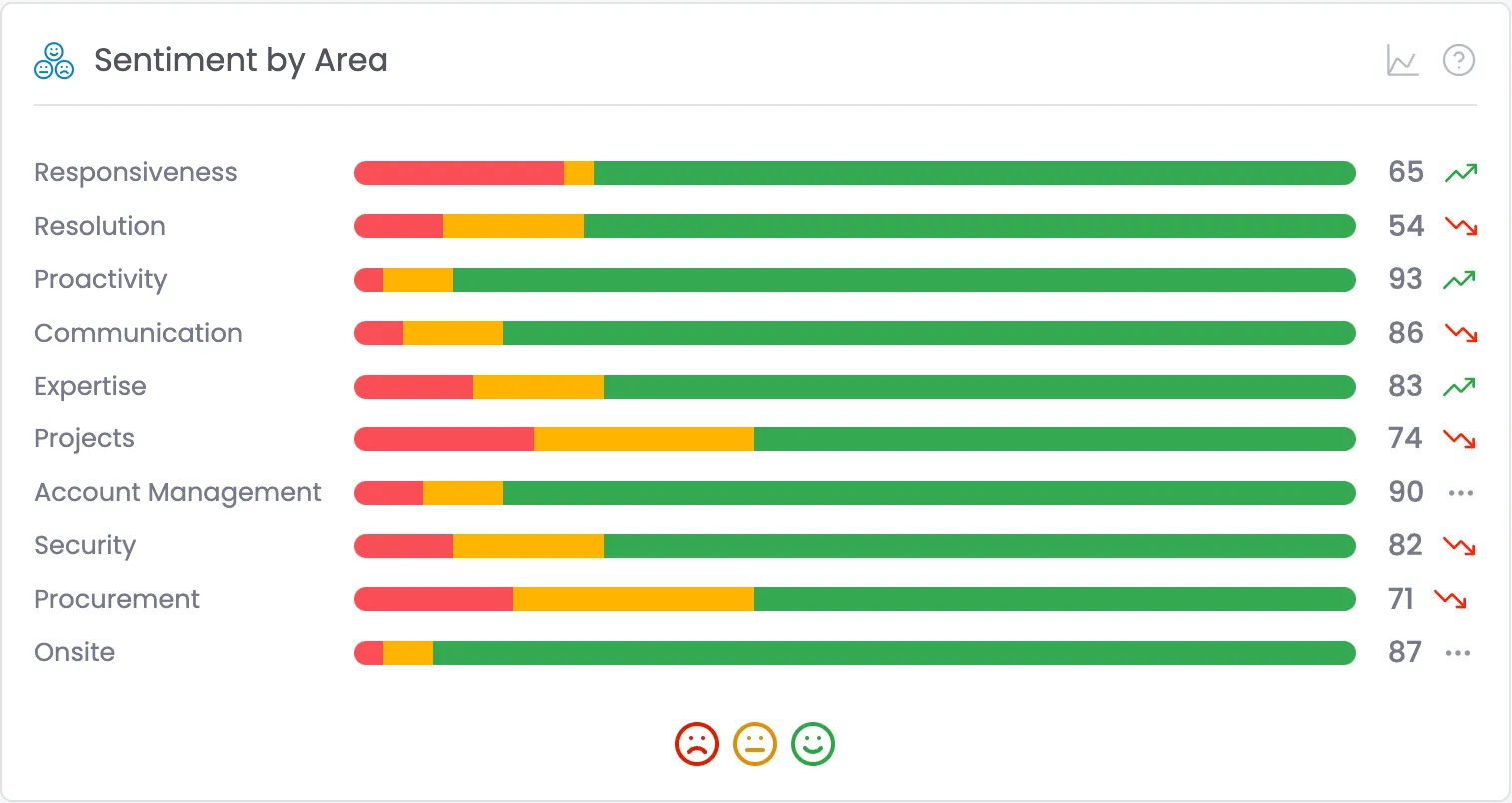
- Displays horizontal bar charts for each PulseCheck question
- Each area shows a numerical average score from all respondents.
- Color-coded sections represent distribution of responses:
- Red: negative responses
- Yellow: neutral responses
- Green: positive responses
- Arrows indicate improving/declining trends compared to previous period
Data
- Gets the scoring break for each question, for the selected PulseCheck Instance:
- # Positive
- # Neutral
- # Negative
- Score (which is a number 0-100)
- Trend (up,dn,nc)
- Uses the currently selected instance so it updates when people change the instance dropdown.
Data Implementation
- Add a DIV with class .dashboard-stacked-horizontal-bar, for each question and add the following attributes:
- data-stacked-horizontal-label="{question area name (e.g. "Helpdesk"}"
- data-stacked-horizontal-1-data="{# negative}"
- data-stacked-horizontal-2-data="{# neutral}"
- data-stacked-horizontal-3-data="{# positive}"
- data-stacked-horizontal-pulse="{score}"
- data-stacked-horizontal-trend="{trend code (e.g. "up")}"
- data-stacked-horizontal-1-url="{link to list report filtered by segment}"
- data-stacked-horizontal-2-url="{link to list report filtered by segment}"
- data-stacked-horizontal-3-url="{link to list report filtered by segment}"
Tile HTML
<div id="sentiment" class="dashboard-tile double">
<div class="dashboard-card-header">
<div class="dashboard-tile-heading-container">
<div class="icon _20 brand-text">
<svg xmlns="http://www.w3.org/2000/svg" width="32" height="29.66" viewbox="0 0 74.62 69.17" stroke="currentColor" fill="none"><g stroke-linecap="round" stroke-linejoin="round" stroke-width="4px"><circle cx="56.62" cy="51.17" r="16"></circle><path d="M63.02,57.57s-2.4-3.2-6.4-3.2-6.4,3.2-6.4,3.2"></path><line x1="51.82" y1="46.37" x2="51.84" y2="46.37"></line><line x1="61.42" y1="46.37" x2="61.44" y2="46.37"></line><circle cx="18" cy="51.17" r="16"></circle><line x1="11.6" y1="55.97" x2="24.4" y2="55.97"></line><line x1="13.2" y1="46.37" x2="13.22" y2="46.37"></line><line x1="22.8" y1="46.37" x2="22.82" y2="46.37"></line><circle cx="37.3" cy="18" r="16"></circle><path d="M30.9,21.2s2.4,3.2,6.4,3.2,6.4-3.2,6.4-3.2"></path><line x1="32.5" y1="13.2" x2="32.52" y2="13.2"></line><line x1="42.1" y1="13.2" x2="42.12" y2="13.2"></line></g></svg>
</div>
<h2 class="dashboard-card-heading">Sentiment by Area</h2>
</div>
<div class="flex">
<a data-tippy-content="View trend chart" href="#">
<div data-tippy-content="View trend chart" class="dashboard-tile-details"><svg width="32" height="32" fill="currentColor" xmlns="http://www.w3.org/2000/svg" viewbox="0 0 32 32">
<path d="M4.67,28l6.39-12,7.3,6.49a2,2,0,0,0,1.7.47,2,2,0,0,0,1.42-1.07L27,10.9,25.18,10,19.69,21l-7.3-6.49A2,2,0,0,0,10.71,14a2,2,0,0,0-1.42,1L4,25V2H2V28a2,2,0,0,0,2,2H30V28Z" transform="translate(0 0)"></path>
</svg>
</div>
</a>
<div data-tippy-content="<p>This tile shows sentiment scores across different areas of your organization, each rated on a scale of 0-100.</p> <p>The numerical score (0-100) is calculated from the distribution of positive, neutral, and negative responses, with higher scores indicating more positive sentiment overall.</p> <p>Each horizontal bar shows the distribution of responses, with the size of each colored section representing the percentage of respondents who gave that rating:</p> <ul> <li>Red sections show the percentage of negative responses</li> <li>Yellow sections show the percentage of neutral responses</li> <li>Green sections show the percentage of positive responses</li> </ul> <p>The arrows show if sentiment in that area is improving (up arrow) or declining (down arrow) compared to the previous period. Areas with a horizontal dots icon show no significant change.</p> <p>Focus attention on areas with lower scores or downward trends to identify opportunities for improvement.</p> </body>" class="dashboard-tile-help">
<svg xmlns="http://www.w3.org/2000/svg" width="24" height="24" viewbox="0 0 24 24" fill="none" stroke="currentColor" stroke-width="1.5" stroke-linecap="round" stroke-linejoin="round"><circle cx="12" cy="12" r="10"></circle><path d="M9.09 9a3 3 0 0 1 5.83 1c0 2-3 3-3 3"></path><line x1="12" y1="17" x2="12.01" y2="17"></line></svg>
</div>
</div>
</div>
<table class="dashboard-stacked-horizontal-bars">
<!-- START Questions - Repeat For Each Question -->
<tr class="dashboard-stacked-horizontal-bar"
data-stacked-horizontal-label="{Question Name/Area}"
data-stacked-horizontal-1-data="{# negative}"
data-stacked-horizontal-2-data="{# neutral}"
data-stacked-horizontal-3-data="{# positive}"
data-stacked-horizontal-pulse="{average pulse}"
data-stacked-horizontal-trend="{trend code}"
data-stacked-horizontal-1-url="{report URL: negative}"
data-stacked-horizontal-2-url="{report URL: neutral}"
data-stacked-horizontal-3-url="{report URL: positive}" >
</tr>
<!-- END Questions -->
</table>
<div class="dashboard-tile-footer">
<div class="icon _24 danger-text">
<svg xmlns="http://www.w3.org/2000/svg" width="32" height="32" viewbox="0 0 24 24" fill="none" stroke="currentColor" stroke-width="2" stroke-linecap="round" stroke-linejoin="round"><circle cx="12" cy="12" r="10"></circle><path d="M16 16s-1.5-2-4-2-4 2-4 2"></path><line x1="9" y1="9" x2="9.01" y2="9"></line><line x1="15" y1="9" x2="15.01" y2="9"></line></svg>
</div>
<div class="icon _24 warning-text">
<svg xmlns="http://www.w3.org/2000/svg" width="32" height="32" viewbox="0 0 24 24" fill="none" stroke="currentColor" stroke-width="2" stroke-linecap="round" stroke-linejoin="round"><circle cx="12" cy="12" r="10"></circle><line x1="8" y1="15" x2="16" y2="15"></line><line x1="9" y1="9" x2="9.01" y2="9"></line><line x1="15" y1="9" x2="15.01" y2="9"></line></svg>
</div>
<div class="icon _24 success-text">
<svg xmlns="http://www.w3.org/2000/svg" width="32" height="32" viewbox="0 0 24 24" fill="none" stroke="currentColor" stroke-width="2" stroke-linecap="round" stroke-linejoin="round"><circle cx="12" cy="12" r="10"></circle><path d="M8 14s1.5 2 4 2 4-2 4-2"></path><line x1="9" y1="9" x2="9.01" y2="9"></line><line x1="15" y1="9" x2="15.01" y2="9"></line></svg>
</div>
</div>
</div>Tile Specific JS
<!-- START Sentiment by Area Chart -->
<style>
table.dashboard-stacked-horizontal-bars td:nth-child(2) {
  width: 100%;
}
</style>

<script>
document.addEventListener("DOMContentLoaded", function() {
  // Select all rows inside tbody.
  const rows = document.querySelectorAll('table.dashboard-stacked-horizontal-bars tbody tr.dashboard-stacked-horizontal-bar');
  if (rows.length === 0) {
    console.error("No rows found. Check your markup and selectors.");
    return;
  }

  // Global tooltip messages from the table element.
  const table = document.querySelector('table.dashboard-stacked-horizontal-bars');
  const tooltip1 = table.getAttribute('data-stacked-horizontal-1-tooltip') || '';
  const tooltip2 = table.getAttribute('data-stacked-horizontal-2-tooltip') || '';
  const tooltip3 = table.getAttribute('data-stacked-horizontal-3-tooltip') || '';

  // SVG icons for trend indicators.
  const trendSVGs = {
    up: `<svg xmlns="http://www.w3.org/2000/svg" width="16" height="16" viewBox="0 0 24 24" fill="none" stroke="var(--360pulse--trend-up)" stroke-width="2" stroke-linecap="round" stroke-linejoin="round">
           <polyline points="23 6 13.5 15.5 8.5 10.5 1 18"></polyline>
           <polyline points="17 6 23 6 23 12"></polyline>
         </svg>`,
    dn: `<svg xmlns="http://www.w3.org/2000/svg" width="16" height="16" viewBox="0 0 24 24" fill="none" stroke="var(--360pulse--trend-down)" stroke-width="2" stroke-linecap="round" stroke-linejoin="round">
           <polyline points="23 18 13.5 8.5 8.5 13.5 1 6"></polyline>
           <polyline points="17 18 23 18 23 12"></polyline>
         </svg>`,
    nc: `<svg xmlns="http://www.w3.org/2000/svg" width="16" height="16" viewBox="0 0 24 24" fill="none" stroke="var(--360pulse--trend-no-change)" stroke-width="2" stroke-linecap="round" stroke-linejoin="round">
           <circle cx="12" cy="12" r="1"></circle>
           <circle cx="19" cy="12" r="1"></circle>
           <circle cx="5" cy="12" r="1"></circle>
         </svg>`
  };

  // Process each row.
  rows.forEach((row, index) => {
    const label = row.getAttribute('data-stacked-horizontal-label') || '';
    const data1 = parseFloat(row.getAttribute('data-stacked-horizontal-1-data')) || 0;
    const data2 = parseFloat(row.getAttribute('data-stacked-horizontal-2-data')) || 0;
    const data3 = parseFloat(row.getAttribute('data-stacked-horizontal-3-data')) || 0;
    const pulse = row.getAttribute('data-stacked-horizontal-pulse') || '';
    // Fixed trend attribute reading.
    const trend = row.getAttribute('data-stacked-horizontal-trend') || 'nc';

    // Get URLs for each segment (default to '#' if not provided)
    const url1 = row.getAttribute('data-stacked-horizontal-1-url') || '#';
    const url2 = row.getAttribute('data-stacked-horizontal-2-url') || '#';
    const url3 = row.getAttribute('data-stacked-horizontal-3-url') || '#';

    // Calculate percentages: first two segments use Math.floor; third is the remainder.
    const total = data1 + data2 + data3;
    let p1 = 0, p2 = 0, p3 = 0;
    if (total > 0) {
      p1 = Math.floor((data1 / total) * 100);
      p2 = Math.floor((data2 / total) * 100);
      p3 = 100 - p1 - p2;
      if (p3 < 0) p3 = 0;
    }

    // Define the tooltip text based on the trend.
    const trendTooltip = trend === 'up' ? 'Improved' : trend === 'dn' ? 'Declined' : 'No Change';

    // Construct the row's inner HTML.
    row.innerHTML = `
      <td>
        <div class="dashboard-stacked-horizontal-bar-label">${label}</div>
      </td>
      <td>
        <div class="dashboard-stacked-horizontal-bar-segments">
          <div class="dashboard-stacked-horizontal-bar-segment segment-1"
               data-tippy-content="<b>${p1}%</b><br>${tooltip1}"
               style="width: ${p1}%">
            <a href="${url1}" style="display: block; width: 100%; height: 100%;"></a>
          </div>
          <div class="dashboard-stacked-horizontal-bar-segment segment-2"
               data-tippy-content="<b>${p2}%</b><br>${tooltip2}"
               style="width: ${p2}%">
            <a href="${url2}" style="display: block; width: 100%; height: 100%;"></a>
          </div>
          <div class="dashboard-stacked-horizontal-bar-segment segment-3"
               data-tippy-content="<b>${p3}%</b><br>${tooltip3}"
               style="width: ${p3}%">
            <a href="${url3}" style="display: block; width: 100%; height: 100%;"></a>
          </div>
        </div>
      </td>
      <td>
        <div class="flex">
          <div class="dashboard-stacked-horizontal-bar-pulse">${pulse}</div>
          <div class="icon 16" data-tippy-tooltip="${trendTooltip}">
            ${trendSVGs[trend] || trendSVGs['nc']}
          </div>
        </div>
      </td>
    `;

    // Animate the segments container using transform scaleX with a stagger.
    setTimeout(() => {
      const segmentsContainer = row.querySelector('.dashboard-stacked-horizontal-bar-segments');
      if (segmentsContainer) {
        segmentsContainer.getBoundingClientRect(); // Force a reflow.
        segmentsContainer.style.transform = "scaleX(1)";
      } else {
        console.error("Segments container not found for row:", row);
      }
    }, 50 * index);
  });
});
</script>
<!-- END Sentiment by Area Chart -->
Feedback Tile
Details
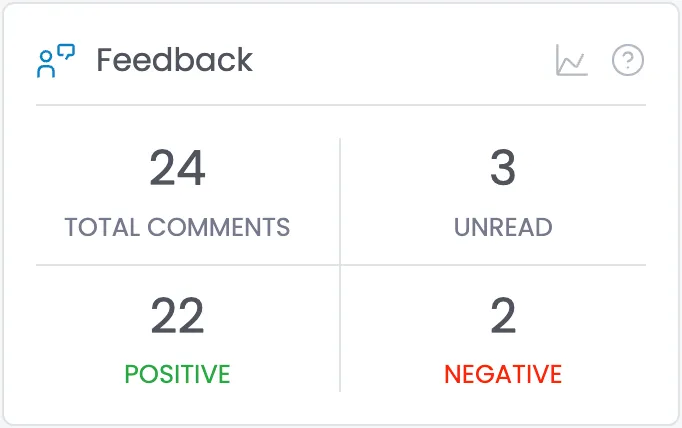
- Summarizes comment metrics:
- Total Comments: Overall number of text comments
- Unread: Comments not yet reviewed
- Positive: Comments classified as positive sentiment
- Negative: Comments classified as negative sentiment
- Shows numerical values for each metric
Data
- Gets the comment stats from the selected PulseCheck Instance:
- # Positive Comments
- # Negative Comments
- Gets the number of unread comments related to this instance from the PulseCheck comments table.
- Calculate:
- Total comments: (Positive Comments + Negative Comments)
- Uses the currently selected instance so it updates when people change the instance dropdown.
Tile HTML
<div id="feedback" class="dashboard-tile">
<div class="dashboard-card-header">
<div class="dashboard-tile-heading-container">
<div class="icon _20 brand-text">
<svg xmlns="http://www.w3.org/2000/svg" fill="currentColor" width="512" height="512" viewbox="0 0 32 32"><path class="cls-2" d="m19,3h10c1.1035,0,2,.8965,2,2v6c0,1.1035-.8965,2-2,2h-2.4229s-1.7314,3-1.7314,3l-1.7324-1,2.3096-4h3.5771s0-6,0-6h-10s0,6,0,6h3v2h-3c-1.1035,0-2-.8965-2-2v-6c0-1.1035.8965-2,2-2Z"></path><path class="cls-2" d="m15,30h-2v-5c-.0018-1.6561-1.3439-2.9982-3-3h-4c-1.6561.0018-2.9982,1.3439-3,3v5H1v-5c.0033-2.7601,2.2399-4.9967,5-5h4c2.7601.0033,4.9967,2.2399,5,5v5Z"></path><path class="cls-2" d="m8,10c1.6569,0,3,1.3431,3,3s-1.3431,3-3,3-3-1.3431-3-3c.0019-1.6561,1.3439-2.9981,3-3m0-2c-2.7614,0-5,2.2386-5,5s2.2386,5,5,5,5-2.2386,5-5-2.2386-5-5-5Z"></path></svg>
</div>
<h2 class="dashboard-card-heading">Feedback</h2>
</div>
<div class="flex">
<a data-tippy-content="View trend chart" href="#">
<div class="dashboard-tile-details">
<svg width="32" height="32" fill="currentColor" xmlns="http://www.w3.org/2000/svg" viewbox="0 0 32 32"><path d="M4.67,28l6.39-12,7.3,6.49a2,2,0,0,0,1.7.47,2,2,0,0,0,1.42-1.07L27,10.9,25.18,10,19.69,21l-7.3-6.49A2,2,0,0,0,10.71,14a2,2,0,0,0-1.42,1L4,25V2H2V28a2,2,0,0,0,2,2H30V28Z" transform="translate(0 0)"></path></svg>
</div>
</a>
<div data-tippy-content="<p>This tile summarizes the qualitative feedback received from your respondents.</p> <p>The metrics shown include:</p> <ul> <li><strong>Total Comments</strong>: The overall number of text comments submitted by respondents</li> <li><strong>Unread</strong>: The number of comments that have not yet been reviewed by your team</li> <li><strong>Positive</strong>: The number of comments classified as having a positive sentiment</li> <li><strong>Negative</strong>: The number of comments classified as having a negative sentiment</li> </ul> <p>Review these comments regularly to identify specific areas for improvement and to recognize what's working well. Negative comments often contain the most actionable insights, while positive comments can highlight successful practices worth reinforcing.</p>" class="dashboard-tile-help">
<svg xmlns="http://www.w3.org/2000/svg" width="24" height="24" viewbox="0 0 24 24" fill="none" stroke="currentColor" stroke-width="1.5" stroke-linecap="round" stroke-linejoin="round"><circle cx="12" cy="12" r="10"></circle><path d="M9.09 9a3 3 0 0 1 5.83 1c0 2-3 3-3 3"></path><line x1="12" y1="17" x2="12.01" y2="17"></line></svg>
</div>
</div>
</div>
<div class="dashboard-tile-content">
<div class="w-layout-grid dashboard-tile-grid">
<a style="opacity:0" href="#" class="dashboard-tile-grid-segment">
<div>{# total comments}</div>
<div class="dashboard-tile-stat-label">Total Comments</div>
</a>
<a href="#" class="dashboard-tile-grid-segment right">
<div>{# unread comments}}</div>
<div class="dashboard-tile-stat-label">Unread</div>
</a>
<a href="#" class="dashboard-tile-grid-segment bottom">
<div>{# positive comments}</div>
<div class="dashboard-tile-stat-label success-text">Positive</div>
</a>
<a href="#" class="dashboard-tile-grid-segment bottom right">
<div>{# negative comments}</div>
<div class="dashboard-tile-stat-label danger-text">Negative</div>
</a>
</div>
</div>
</div>Tile Specific JS
None
Advocacy Tile
Details
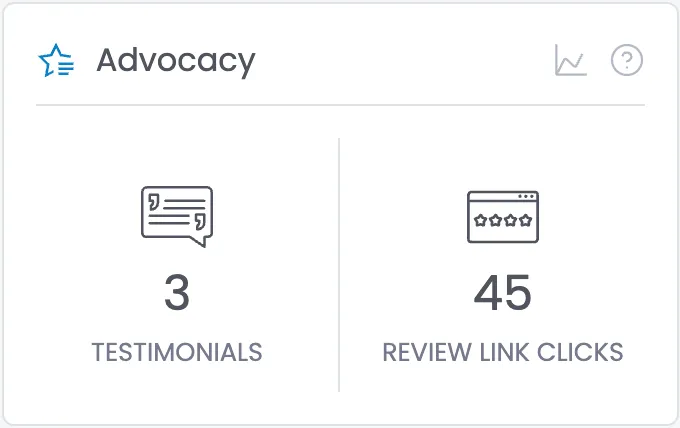
- Displays metrics related to customer advocacy:
- Testimonials: Number of testimonials provided by respondents
- Review Link Clicks: Number of times respondents clicked external review links
Data
- Gets the Testimonial and Review link click stats from the selected PulseCheck Instance:
- # Positive Comments
- # Negative Comments
Tile HTML
<div id="advocacy" class="dashboard-tile">
<div class="dashboard-card-header">
<div class="dashboard-tile-heading-container">
<div class="icon _20 brand-text">
<svg xmlns="http://www.w3.org/2000/svg" fill="currentColor" width="512" height="512" viewbox="0 0 32 32"><rect x="18" y="26" width="8" height="2"></rect><rect x="18" y="22" width="12" height="2"></rect><rect x="18" y="18" width="12" height="2"></rect><polygon points="20.549 11.217 16 2 11.451 11.217 1.28 12.695 8.64 19.87 6.902 30 14 26.269 14 24.009 9.559 26.344 10.611 20.208 10.789 19.171 10.036 18.438 5.578 14.091 11.739 13.196 12.779 13.045 13.245 12.102 16 6.519 18.755 12.102 19.221 13.045 20.261 13.196 27.715 14.281 28 12.3 20.549 11.217"></polygon></svg>
</div>
<h2 class="dashboard-card-heading">Advocacy</h2>
</div>
<div class="flex">
<a data-tippy-content="View trend chart" href="#">
<div class="dashboard-tile-details">
<svg width="32" height="32" fill="currentColor" xmlns="http://www.w3.org/2000/svg" viewbox="0 0 32 32"><path d="M4.67,28l6.39-12,7.3,6.49a2,2,0,0,0,1.7.47,2,2,0,0,0,1.42-1.07L27,10.9,25.18,10,19.69,21l-7.3-6.49A2,2,0,0,0,10.71,14a2,2,0,0,0-1.42,1L4,25V2H2V28a2,2,0,0,0,2,2H30V28Z" transform="translate(0 0)"></path></svg>
</div>
</a>
<div data-tippy-content="<p>This tile tracks how stakeholders are actively promoting your organization to others.</p> <p>The metrics shown include:</p> <ul> <li><strong>Testimonials</strong>: The number of testimonials provided by respondents that can be used in marketing materials</li> <li><strong>Review Link Clicks</strong>: The number of times respondents have clicked on links to leave reviews on external platforms</li> </ul> <p>Advocacy is a powerful indicator of stakeholder satisfaction and loyalty. Higher advocacy metrics suggest your stakeholders are not just satisfied but enthusiastic enough to publicly endorse your organization.</p> <p>Strong advocacy can lead to organic growth through word-of-mouth referrals and enhanced credibility in your market or community.</p>" class="dashboard-tile-help">
<svg xmlns="http://www.w3.org/2000/svg" width="24" height="24" viewbox="0 0 24 24" fill="none" stroke="currentColor" stroke-width="1.5" stroke-linecap="round" stroke-linejoin="round"><circle cx="12" cy="12" r="10"></circle><path d="M9.09 9a3 3 0 0 1 5.83 1c0 2-3 3-3 3"></path><line x1="12" y1="17" x2="12.01" y2="17"></line></svg>
</div>
</div>
</div>
<div class="dashboard-tile-content">
<div class="dashboard-tile-grid">
<a href="#" class="dashboard-tile-grid-segment bottom">
<div class="icon _36">
<svg fill="currentColor" width="512" height="512" xmlns="http://www.w3.org/2000/svg" viewbox="0 0 58.01 50"><path d="M53,0H5C2.24,0,0,2.24,0,5v33.05c0,2.18,1.77,3.95,3.95,3.95h35.06l11.54,7.83c.17.12.37.17.56.17.16,0,.32-.04.47-.12.33-.17.53-.51.53-.88v-7h1.95c2.18,0,3.95-1.77,3.95-3.95V5c0-2.76-2.24-5-5-5h-.01ZM56,38.05c0,1.07-.87,1.95-1.95,1.95h-2.95c-.55,0-1,.45-1,1v6.11l-10.23-6.94c-.17-.11-.36-.17-.56-.17H3.95c-1.07,0-1.95-.87-1.95-1.95V5c0-1.65,1.35-3,3-3h48c1.65,0,3,1.35,3,3v33.05Z"></path><path d="M7,13h1.63v.41c0,1.08-.92,1.66-1.1,1.76-.31.18-.5.5-.51.86l-.04,2.96c0,.27.1.53.29.72.19.19.44.3.71.3h.06c1.75,0,3.39-.68,4.64-1.91,1.26-1.25,1.95-2.91,1.95-4.69v-6.41c0-.55-.45-1-1-1h-6.63c-.55,0-1,.45-1,1v5c0,.55.45,1,1,1ZM8,8h4.63v5.41c0,1.24-.48,2.4-1.36,3.27-.63.63-1.42,1.05-2.27,1.23l.02-1.33c.85-.66,1.62-1.75,1.62-3.17v-1.41c0-.55-.45-1-1-1h-1.63v-3h-.01ZM51,22h-6.63c-.55,0-1,.45-1,1v5c0,.55.45,1,1,1h1.63v.41c0,1.08-.92,1.66-1.1,1.76-.31.17-.5.5-.51.86l-.04,2.96c0,.27.1.53.29.72s.44.3.71.3h.06c1.75,0,3.39-.68,4.64-1.91,1.26-1.25,1.96-2.91,1.96-4.69v-6.41c0-.55-.45-1-1-1h-.01ZM50,29.41c0,1.24-.48,2.4-1.36,3.26-.63.63-1.42,1.05-2.27,1.23l.02-1.33c.85-.66,1.62-1.75,1.62-3.17v-1.41c0-.55-.45-1-1-1h-1.63v-3h4.63v5.41h0ZM51,11h-31.37c-.55,0-1,.45-1,1s.45,1,1,1h31.37c.55,0,1-.45,1-1s-.45-1-1-1ZM51,17H18.68c-.55,0-1,.45-1,1s.45,1,1,1h32.32c.55,0,1-.45,1-1s-.45-1-1-1ZM38.37,23H7c-.55,0-1,.45-1,1s.45,1,1,1h31.37c.55,0,1-.45,1-1s-.45-1-1-1ZM38.37,29H7c-.55,0-1,.45-1,1s.45,1,1,1h31.37c.55,0,1-.45,1-1s-.45-1-1-1Z"></path></svg>
</div>
<div>{# testimonials}</div>
<div class="dashboard-tile-stat-label">Testimonials</div>
</a>
<a href="#" class="dashboard-tile-grid-segment bottom right">
<div class="icon _36">
<svg fill="currentColor" width="512" height="512" xmlns="http://www.w3.org/2000/svg" viewbox="0 0 63.12 46.21"><path d="M7.64,27.65l-.08,2.35c-.02.51.22,1,.64,1.31.27.19.59.29.91.29.18,0,.36-.03.53-.09l2.21-.8,2.2.8c.48.18,1.02.1,1.44-.2.42-.3.65-.79.64-1.31l-.08-2.35,1.44-1.85c.32-.41.41-.94.25-1.43s-.55-.87-1.04-1.01l-2.26-.65-1.31-1.94c-.29-.43-.77-.68-1.28-.68s-.99.25-1.28.68l-1.31,1.94-2.26.65c-.5.14-.89.52-1.04,1.01-.16.49-.06,1.02.25,1.43l1.45,1.85ZM10.17,24.9c.35-.1.65-.32.86-.62l.81-1.19.81,1.19c.2.3.51.52.85.62l1.38.4-.89,1.13c-.22.29-.34.65-.33,1.01l.05,1.44-1.35-.49h0c-.17-.06-.35-.09-.53-.09s-.36.03-.53.09l-1.35.49.05-1.44c.01-.36-.1-.72-.33-1.01l-.89-1.13,1.38-.4ZM20.76,27.65l-.08,2.35c-.02.51.22,1,.64,1.31.27.19.59.29.91.29.18,0,.36-.03.53-.09l2.21-.8,2.21.8c.48.18,1.02.1,1.44-.2.42-.3.65-.79.64-1.31l-.08-2.35,1.44-1.85c.32-.41.41-.94.25-1.43-.16-.49-.55-.87-1.04-1.01l-2.26-.65-1.31-1.94c-.29-.43-.77-.68-1.28-.68s-.99.25-1.28.68l-1.31,1.94-2.26.65c-.49.14-.88.52-1.04,1.01-.16.49-.06,1.02.25,1.43l1.45,1.85ZM23.3,24.9c.35-.1.65-.32.86-.62l.81-1.19.8,1.19c.2.3.51.52.86.62l1.38.4-.89,1.13c-.22.29-.34.65-.33,1.01l.05,1.44-1.35-.49h0c-.17-.06-.35-.09-.53-.09s-.36.03-.53.09l-1.35.49.05-1.44c.01-.36-.1-.72-.33-1.01l-.89-1.13,1.38-.4ZM33.89,27.65l-.08,2.35c-.02.51.22,1,.64,1.31.27.19.59.29.91.29.18,0,.36-.03.53-.09l2.2-.8,2.21.8c.48.18,1.02.1,1.44-.2.42-.3.65-.79.64-1.31l-.08-2.35,1.44-1.85c.32-.41.41-.94.25-1.43-.16-.49-.55-.87-1.04-1.01l-2.26-.65-1.31-1.94c-.29-.43-.77-.68-1.28-.68s-.99.25-1.28.68l-1.31,1.94-2.26.65c-.49.14-.88.52-1.04,1.01-.16.49-.06,1.02.25,1.43l1.45,1.85ZM36.43,24.9c.35-.1.65-.32.86-.62l.81-1.19.81,1.19c.2.3.51.52.86.62l1.38.4-.89,1.13c-.22.29-.34.65-.33,1.01l.05,1.44-1.35-.49h0c-.17-.06-.35-.09-.53-.09s-.36.03-.53.09l-1.35.49.05-1.44c.01-.36-.1-.72-.33-1.01l-.89-1.13,1.38-.4ZM47.08,27.65l-.08,2.35c-.02.51.22,1,.64,1.31.27.19.59.29.91.29.18,0,.36-.03.53-.09l2.21-.8,2.21.8c.48.18,1.02.1,1.44-.2.42-.3.65-.79.64-1.31l-.08-2.35,1.44-1.85c.32-.41.41-.94.25-1.43-.16-.49-.55-.87-1.04-1.01l-2.26-.65-1.31-1.94c-.29-.43-.77-.68-1.28-.68s-1,.25-1.28.68l-1.31,1.94-2.26.65c-.5.14-.89.52-1.04,1.01-.16.49-.06,1.02.25,1.43l1.44,1.85ZM49.62,24.9c.35-.1.65-.32.86-.62l.81-1.19.81,1.19c.2.3.51.52.85.62l1.38.4-.89,1.13c-.22.29-.34.65-.33,1.01l.05,1.44-1.35-.49h0c-.17-.06-.35-.09-.53-.09s-.36.03-.53.09l-1.35.49.05-1.44c.01-.36-.1-.72-.33-1.01l-.89-1.13,1.38-.4ZM59.28,0H3.83C1.72,0,0,1.72,0,3.83v38.54c0,2.11,1.72,3.83,3.83,3.83h55.45c2.11,0,3.83-1.72,3.83-3.83V3.83c0-2.11-1.72-3.83-3.83-3.83ZM60.76,42.37c0,.81-.66,1.47-1.47,1.47H3.83c-.81,0-1.48-.66-1.48-1.47V10.28h58.4v32.09ZM60.76,7.92H2.36V3.83c0-.81.66-1.48,1.48-1.48h55.45c.81,0,1.47.66,1.47,1.48v4.09ZM48.04,4.98c0,.84-.68,1.51-1.51,1.51s-1.51-.68-1.51-1.51.68-1.51,1.51-1.51,1.51.68,1.51,1.51ZM53.16,4.98c0,.84-.68,1.51-1.51,1.51s-1.51-.68-1.51-1.51.68-1.51,1.51-1.51,1.51.68,1.51,1.51ZM58.29,4.98c0,.84-.68,1.51-1.51,1.51s-1.51-.68-1.51-1.51.68-1.51,1.51-1.51,1.51.68,1.51,1.51Z"></path></svg>
</div>
<div>{# review link clicks}</div>
<div class="dashboard-tile-stat-label">Review Link Clicks</div>
</a>
</div>
</div>
</div>Tile Specific JS
None
PulseCheck Results Tile (table)
Details
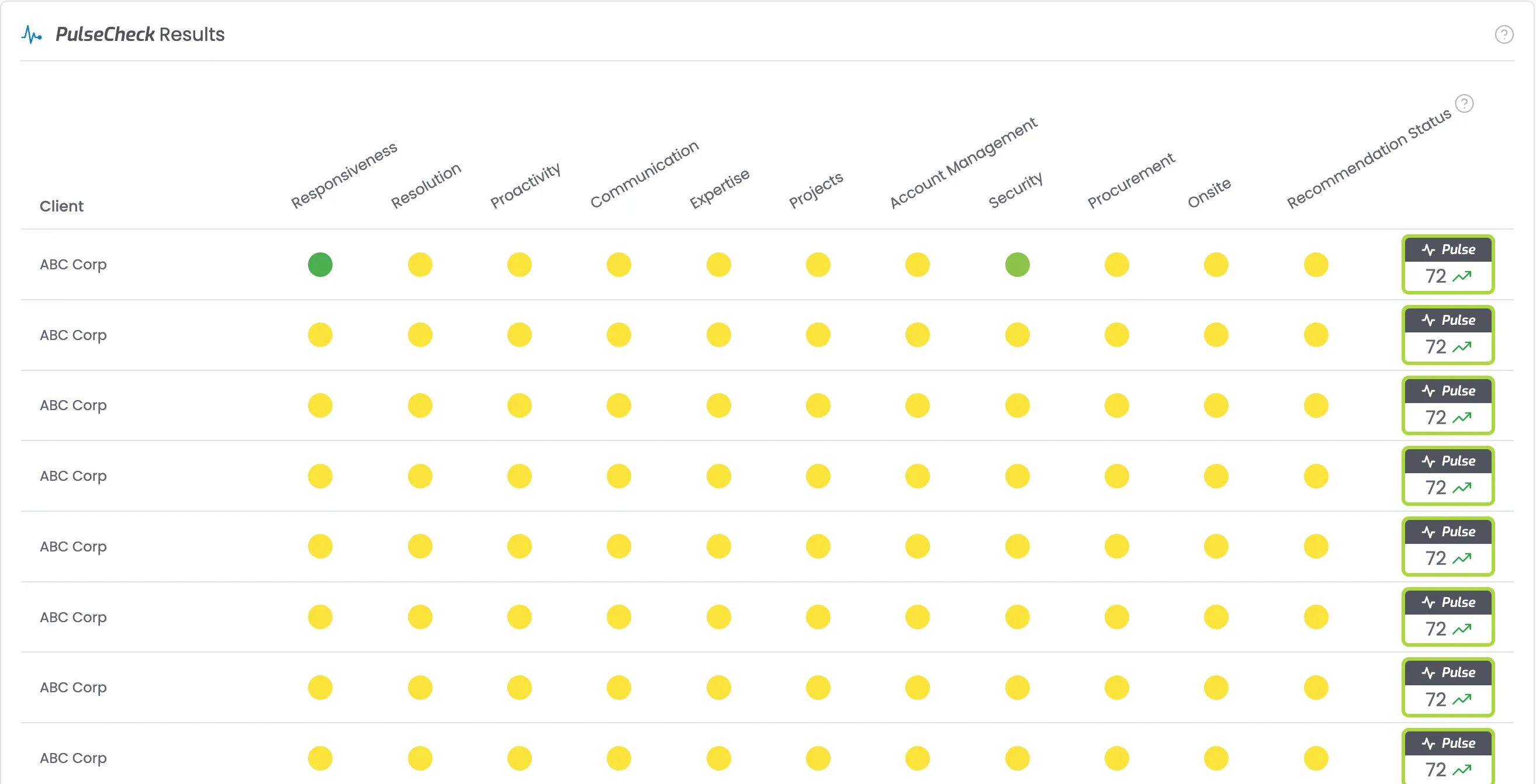
- Table showing response by respondent across each question/area
- Color-coded dots indicate sentiment levels:
- Green: Strong positive sentiment
- Yellow: Neutral or mixed sentiment
- Red: Negative sentiment requiring attention
- Variable shades represent nuanced sentiment scores
- Second to last column shows NPS Score
- Right column shows overall Pulse score with trend indicators
- Pagination controls at bottom (default to 30 per page)
Data
- Gets the questions stats from the selected PulseCheck Instance:
- Group by Tab (if enabled)
- Aggregate results and display as a group
- Get individual results for anyone not belonging to the tag this PulseCheck is aggregated by.
- For example if tag is "Client" then all users with "Client": "ABC Corp" would be grouped together and shown as one row.
- If not aggregated
- Get all individual responses for this PulseCheck instance.
- For each results get
- Name (individual or group name)
- For each question
- Score
- For individuals AI Sentiment if available overrides score
- NPS Rating
- For individuals we store NPS Rating as you can't score a single response. This is their raw answer (0-10). To use on this chart use the following conversion to calculate the NPS score:
- 0-6 = 0
- 7-8 = 50
- 9-10 = 100
- For groups score is calculated already and stored in the NPS Score field.
- Pulse - The pulse of the selected PulseCheck instance
- Previous Pulse - The pulse of the previous PulseCheck instance.
Data Aggregation (group by Tag)
In many cases, our customers need results aggregated at the group level rather than for each individual respondent. For example, they may send surveys to multiple people within the same company but prefer to see a single aggregate score for the company instead of individual responses. We accomplish this with flexibility by using Tags.
This feature can be enabled in PulseCheck Settings - Done
When enabled, the system calculates the average scores for all individuals within each group and displays the aggregated results in a single row per group rather than separate entries for each respondent. This provides a clearer, high-level view of trends across organizations, departments, or other groupings.
If an individual is not part of a group or does not match the grouping criteria used for aggregation, their results will be displayed separately as an individual entry. This ensures that all responses are accounted for, whether grouped or standalone.
Data Implementation
- Header Row
- For each question column, in the corresponding th, there will be a div with .pulsecheck-table-heading
- Set the text to be the name of the question / area (e.g. "Helpdesk")
- Add the attribute data-tippy-content="{full question}"
- Create a row in the table for each respondent (or group)
- First column: Respondent or Group Name
- n columns: 1 column per question
- Inside each table cell, there is a div with class .pulsecheck-dot
- On this div add the attribute data-pulse-score="{individual or group score for this question}"
- NPS column:
- Inside the table cell, there is a div with class .pulsecheck-dot
- On this div add the attribute data-pulse-score="{NPS Score}"
- Pulse column:
- Inside the table cell, there is a div with class .pulsecheck-happiness-score-badge
- Pulse Check Score
- Use the Pulse score from individuals response (current and previous)
- If aggregation is on, calculate the averages for selected and previous pulse scores for the group to fill into data-pulse-score and data-pulse-score-past
- On this div add the attributes
- data-pulse-score="{Pulse of selected PulseCheck}"
- data-pulse-score-past="{Pulse of previous PulseCheck}"
Tile HTML
<div id="pulsecheck-results" class="dashboard-tile quad">
<div class="dashboard-card-header">
<div class="dashboard-tile-heading-container">
<div class="icon _20 brand-text">
<svg fill="currentColor" width="32" height="32" viewbox="0 0 512 512" xmlns="http://www.w3.org/2000/svg"><path d="M432,272a48.09,48.09,0,0,0-45.25,32H347.53l-28.35-85.06a16,16,0,0,0-30.56.66L244.11,375.36l-52.33-314a16,16,0,0,0-31.3-1.25L99.51,304H48a16,16,0,0,0,0,32h64a16,16,0,0,0,15.52-12.12l45.34-181.37,51.36,308.12A16,16,0,0,0,239.1,464c.3,0,.6,0,.91,0a16,16,0,0,0,15.37-11.6l49.8-174.28,15.64,46.94A16,16,0,0,0,336,336h50.75A48,48,0,1,0,432,272Z"></path></svg>
</div>
<h2 class="dashboard-card-heading"><span class="brand-font">PulseCheck</span> Results</h2>
</div>
<div data-tippy-content="<p>This table provides a comprehensive view of sentiment by respondent across areas.</p> <p>Each colored circle represents sentiment in a specific area:</p> <ul> <li><strong>Green dots</strong>: Strong positive sentiment</li> <li><strong>Yellow dots</strong>: Neutral or mixed sentiment</li> <li><strong>Red dots</strong>: Negative sentiment requiring attention</li> </ul> <p>When users leave comments, the circle color may appear as a variable shade between these three colors, representing more nuanced sentiment scores calculated from their feedback.</p> <p>The Pulse score in the right column shows the overall calculated sentiment score for each client. This comprehensive score incorporates AI-analyzed data along with other metrics from survey responses, Net Promoter Score data, qualitative comments, and additional feedback sources. The arrow indicates if the overall sentiment is trending upward or downward compared to the previous period.</p> <p>This view helps identify patterns across clients and spot specific areas that may need improvement or that are performing exceptionally well.</p>" class="dashboard-tile-help">
<svg xmlns="http://www.w3.org/2000/svg" width="24" height="24" viewbox="0 0 24 24" fill="none" stroke="currentColor" stroke-width="1.5" stroke-linecap="round" stroke-linejoin="round"><circle cx="12" cy="12" r="10"></circle><path d="M9.09 9a3 3 0 0 1 5.83 1c0 2-3 3-3 3"></path><line x1="12" y1="17" x2="12.01" y2="17"></line></svg>
</div>
</div>
<form id="pulsecheck-results-form" name="pulsecheck-results-form" method="post" class="pulsecheck-results-table-form">
<div class="table-scroll-container">
<table class="table">
<thead class="table-head">
<tr class="table-header-row no-background">
<th class="vertical-align-bottom">
<div class="table-cell-content">
<div class="table-heading">Respondent</div>
</div>
</th>
<!-- START Question Column Header - repeat for each question -->
<th>
<div class="table-cell-content no-minwidth">
<div data-tippy-content="{full question}" class="pulsecheck-table-heading">{Question Name / Area}</div>
</div>
</th>
<!-- END Question Column Header -->
<!-- START NPS Column Header -->
<th>
<div class="table-cell-content no-minwidth">
<div class="pulsecheck-table-heading">
<div>Recommendation Status</div>
<div data-tippy-content="<p>Indicates whether respondents would recommend your organization to others.</p> <p> <span style=color:#2ecc71;font-weight:bold;font-size:18px>●</span> <strong>Promoter:</strong> Highly likely to recommend (9-10 score)<br> <span style=color:#f1c40f;font-weight:bold;font-size:18px>●</span> <strong>Passive:</strong> Satisfied but unenthusiastic (7-8 score)<br> <span style=color:#e74c3c;font-weight:bold;font-size:18px>●</span> <strong>Detractor:</strong> Unlikely to recommend (0-6 score) </p> <p>This classification is based on the Net Promoter Score® methodology, which is widely used to measure customer loyalty and satisfaction.</p>" class="pulsecheck-result-table-heading-help-icon">
<svg xmlns="http://www.w3.org/2000/svg" width="24" height="24" viewbox="0 0 24 24" fill="none" stroke="currentColor" stroke-width="1.5" stroke-linecap="round" stroke-linejoin="round"><circle cx="12" cy="12" r="10"></circle><path d="M9.09 9a3 3 0 0 1 5.83 1c0 2-3 3-3 3"></path><line x1="12" y1="17" x2="12.01" y2="17"></line></svg>
</div>
</div>
</div>
</th>
<!-- END NPS Column Header -->
<!-- START Empty Column Header - for over pulse score -->
<th class="th"></th>
<!-- END Empty Column Header -->
</tr>
</thead>
<tbody class="table-body">
<!-- START Respondent Row - Repeat for each respondent -->
<tr class="table-row {if the last row, add the class .last-row here}">
<td class="table-cell">
<div class="table-cell-content">
<div class="table-data">{Respondnent name (individual or group)}</div>
</div>
</td>
<!-- START Question Columns - repeat for each question -->
<td class="table-cell">
<div class="table-cell-content no-minwidth">
<div data-pulse-score="{question score -1 - 100}" class="pulsecheck-dot">
<svg xmlns="http://www.w3.org/2000/svg" fill="currentColor" width="24" height="24" viewbox="0 0 32 32"><circle cx="16" cy="16" r="14"></circle></svg>
</div>
</div>
</td>
<!-- END Question Columns -->
<!-- START NPS Question Column -->
<td class="table-cell">
<div class="table-cell-content no-minwidth">
<div data-pulse-score="{question score -1 - 100}" class="pulsecheck-dot">
<svg xmlns="http://www.w3.org/2000/svg" fill="currentColor" width="24" height="24" viewbox="0 0 32 32"><circle cx="16" cy="16" r="14"></circle></svg>
</div>
</div>
</td>
<!-- END NPS Question Column -->
<!-- START Pulse Badge Column -->
<td class="table-cell">
<div class="table-row-action-button-container">
<div class="pulsecheck-happiness-score-badge"
data-pulse-score-past="{previous instance pulse score}"
data-pulse-score="{selected instance pulse score}" >
<div class="pulsecheck-happiness-score-badge-header">
<div class="icon _12">
<svg xmlns="http://www.w3.org/2000/svg" width="24" height="24" viewbox="0 0 24 24" fill="none" stroke="currentColor" stroke-width="3" stroke-linecap="round" stroke-linejoin="round"><polyline points="22 12 18 12 15 21 9 3 6 12 2 12"></polyline></svg>
</div>
<div>Pulse</div>
</div>
<div class="pulsecheck-happiness-score">
<div>0</div>
<div class="icon _16">
<svg xmlns="http://www.w3.org/2000/svg" width="512" height="512" viewbox="0 0 24 24" fill="none" stroke="var(--360pulse--trend-no-change)" stroke-width="2" stroke-linecap="round" stroke-linejoin="round"><circle cx="12" cy="12" r="1"></circle><circle cx="19" cy="12" r="1"></circle><circle cx="5" cy="12" r="1"></circle></svg>
</div>
</div>
</div>
</div>
</td>
<!-- END Pulse Badge Column
</tr>
<!-- END Respondent Row -->
</tbody>
</table>
</div>
<div class="table-pagination">
<div class="pagination-left">
<div class="items-per-page-container">
<div>Items per page:</div>
<div data-hover="false" data-delay="0" class="dropdown w-dropdown">
<div class="dropdown-closed table-filter w-dropdown-toggle">
<div class="filter-dropdown-arrow w-icon-dropdown-toggle"></div>
<div class="dropdown-text-content">25</div>
</div>
<nav class="dropdown-open top-left w-dropdown-list">
<div class="dropdown-option-container">
<a href="#" class="dropdown-option-simple">
<div class="dropdown-option-selected-icon-container">
<div class="dropdown-option-selected-icon selected">
<svg xmlns="http://www.w3.org/2000/svg" width="24" height="24" viewbox="0 0 24 24" fill="none" stroke="currentColor" stroke-width="2" stroke-linecap="round" stroke-linejoin="round"><polyline points="20 6 9 17 4 12"></polyline></svg>
</div>
</div>
<div class="dropdown-option-text">25</div>
</a>
<a href="#" class="dropdown-option-simple">
<div class="dropdown-option-selected-icon-container">
<div class="dropdown-option-selected-icon">
<svg xmlns="http://www.w3.org/2000/svg" width="24" height="24" viewbox="0 0 24 24" fill="none" stroke="currentColor" stroke-width="2" stroke-linecap="round" stroke-linejoin="round"><polyline points="20 6 9 17 4 12"></polyline></svg>
</div>
</div>
<div class="dropdown-option-text">50</div>
</a>
<a href="#" class="dropdown-option-simple">
<div class="dropdown-option-selected-icon-container">
<div class="dropdown-option-selected-icon">
<svg xmlns="http://www.w3.org/2000/svg" width="24" height="24" viewbox="0 0 24 24" fill="none" stroke="currentColor" stroke-width="4" stroke-linecap="round" stroke-linejoin="round"><polyline points="20 6 9 17 4 12"></polyline></svg>
</div>
</div>
<div class="dropdown-option-text">75</div>
</a>
<a href="#" class="dropdown-option-simple">
<div class="dropdown-option-selected-icon-container">
<div class="dropdown-option-selected-icon">
<svg xmlns="http://www.w3.org/2000/svg" width="24" height="24" viewbox="0 0 24 24" fill="none" stroke="currentColor" stroke-width="4" stroke-linecap="round" stroke-linejoin="round"><polyline points="20 6 9 17 4 12"></polyline></svg>
</div>
</div>
<div class="dropdown-option-text">100</div>
</a>
</div>
</nav>
</div>
</div>
<div class="paginaton-total-items">
<div>1–10 of 103 items</div>
</div>
</div>
<div class="pagination-right">
<div class="pagination-pages-dropdown">
<div data-hover="false" data-delay="0" class="dropdown w-dropdown">
<div class="dropdown-closed table-filter w-dropdown-toggle">
<div class="filter-dropdown-arrow w-icon-dropdown-toggle"></div>
<div class="dropdown-text-content">{current page}</div>
</div>
<nav class="dropdown-open top-right w-dropdown-list">
<div class="dropdown-option-container">
<!-- START Page Number - repeat for each page -->
<a class="dropdown-option-simple">
<div class="dropdown-option-selected-icon-container">
<div class="dropdown-option-selected-icon {if selected add class .selected here}">
<svg xmlns="http://www.w3.org/2000/svg" width="24" height="24" viewbox="0 0 24 24" fill="none" stroke="currentColor" stroke-width="2" stroke-linecap="round" stroke-linejoin="round"><polyline points="20 6 9 17 4 12"></polyline></svg>
</div>
</div>
<div class="dropdown-option-text">{page number}</div>
</a>
<!-- END Page Number -->
</div>
</nav>
</div>
<div>of {# pages} pages</div>
</div>
<div id="page-bck" class="pagination-button">
<div class="pagination-icon">
<svg fill="currentColor" xmlns="http://www.w3.org/2000/svg" width="32" height="32" viewbox="0 0 32 32" xml:space="preserve"><polygon points="20,24 10,16 20,8 "></polygon></svg>
</div>
</div>
<div id="page-fwd" class="pagination-button">
<div class="pagination-icon">
<svg fill="currentColor" xmlns="http://www.w3.org/2000/svg" width="32px" height="32px" viewbox="0 0 32 32" xml:space="preserve"><polygon points="12,8 22,16 12,24 "></polygon></svg>
</div>
</div>
</div>
</div>
</form>
</div>
Tile Specific JS
<!-- START PulseCheck Result Table -->
<script>
  window.addEventListener('load', function () {
    const rotatedHeading = document.querySelector('thead .pulsecheck-table-heading');
    if (!rotatedHeading) return;

    const headerRow = rotatedHeading.closest('tr');
    const thElements = headerRow.querySelectorAll('th');

    function updateThHeights() {
      thElements.forEach(th => th.style.height = 'auto');

      let maxHeight = 0;
      headerRow.querySelectorAll('.pulsecheck-table-heading').forEach(heading => {
        const { height } = heading.getBoundingClientRect();
        if (height > maxHeight) {
          maxHeight = height;
        }
      });

      const requiredHeight = maxHeight + 10;
      thElements.forEach(th => th.style.height = `${requiredHeight}px`);
    }

    requestAnimationFrame(updateThHeights);
  });
</script>

<!-- Combined Pulse Score Coloring and Cascading Animation -->
<script src="https://cdnjs.cloudflare.com/ajax/libs/gsap/3.12.2/gsap.min.js"></script>
<script>
document.addEventListener("DOMContentLoaded", function() {
  function getColorVariable(score) {
    if (score < 0 || score > 100) {
      return '--360pulse--score-color-neutral';
    }
    if (score >= 0 && score <= 9) {
      return '--360pulse--score-color-0-9';
    } else if (score >= 10 && score <= 19) {
      return '--360pulse--score-color-10-19';
    } else if (score >= 20 && score <= 29) {
      return '--360pulse--score-color-20-29';
    } else if (score >= 30 && score <= 39) {
      return '--360pulse--score-color-30-39';
    } else if (score >= 40 && score <= 49) {
      return '--360pulse--score-color-40-49';
    } else if (score >= 50 && score <= 59) {
      return '--360pulse--score-color-50-59';
    } else if (score >= 60 && score <= 69) {
      return '--360pulse--score-color-60-69';
    } else if (score >= 70 && score <= 79) {
      return '--360pulse--score-color-70-79';
    } else if (score >= 80 && score <= 89) {
      return '--360pulse--score-color-80-89';
    } else if (score >= 90 && score <= 99) {
      return '--360pulse--score-color-90-99';
    } else if (score === 100) {
      return '--360pulse--score-color-100';
    }
  }

  var scoreElements = document.querySelectorAll('[data-pulse-score]:not(.pulsecheck-happiness-score-badge)');
  scoreElements.forEach(function(el) {
    var score = parseInt(el.getAttribute('data-pulse-score'), 10);
    if (isNaN(score)) return;
    var cssVarName = getColorVariable(score);
    if (cssVarName) {
      var color = getComputedStyle(document.documentElement).getPropertyValue(cssVarName);
      if (color) {
        el.style.color = color.trim();
      }
    }
  });

  var badgeElements = document.querySelectorAll('.pulsecheck-happiness-score-badge');
  badgeElements.forEach(function(badge) {
    var scoreAttr = badge.getAttribute('data-pulse-score');
    var score = parseInt(scoreAttr, 10);

    var pastAttr  = badge.getAttribute('data-pulse-score-past');
    var pastScore = 0;
    if (pastAttr !== null && pastAttr.trim() !== "") {
      var parsedPast = parseInt(pastAttr, 10);
      if (!isNaN(parsedPast)) {
        pastScore = parsedPast;
      }
    }

    var computedTrend = "nc";
    if (pastScore !== 0) {
      if (score > pastScore) {
        computedTrend = "up";
      } else if (score < pastScore) {
        computedTrend = "dn";
      } else {
        computedTrend = "nc";
      }
    }
    badge.setAttribute("data-pulse-trend", computedTrend);

    var trendText = computedTrend === "up" ? "Trending Up" :
                    computedTrend === "dn" ? "Trending Down" : "No Change";
    badge.setAttribute("data-tippy-content", trendText + "<br>Past Score: " + pastScore);

    if (!isNaN(score)) {
      var cssVarName = getColorVariable(score);
      if (cssVarName) {
        var color = getComputedStyle(document.documentElement).getPropertyValue(cssVarName);
        if (color) {
          badge.style.borderColor = color.trim();
        }
      }
      var scoreTextContainer = badge.querySelector('.pulsecheck-happiness-score > div:first-child');
      if (scoreTextContainer) {
        scoreTextContainer.textContent = score;
      }
    }

    var trend = badge.getAttribute('data-pulse-trend');
    if (trend) {
      trend = trend.trim().toLowerCase();
      var iconContainer = badge.querySelector('.pulsecheck-happiness-score > .icon');
      if (iconContainer) {
        var svgMarkup = '';
        if (trend === 'up') {
          svgMarkup = `
            <svg xmlns="http://www.w3.org/2000/svg" width="512" height="512" viewBox="0 0 24 24" fill="none" stroke="var(--360pulse--trend-up)" stroke-width="2" stroke-linecap="round" stroke-linejoin="round">
              <polyline points="23 6 13.5 15.5 8.5 10.5 1 18"></polyline>
              <polyline points="17 6 23 6 23 12"></polyline>
            </svg>`;
        } else if (trend === 'dn') {
          svgMarkup = `
            <svg xmlns="http://www.w3.org/2000/svg" width="512" height="512" viewBox="0 0 24 24" fill="none" stroke="var(--360pulse--trend-down)" stroke-width="2" stroke-linecap="round" stroke-linejoin="round">
              <polyline points="23 18 13.5 8.5 8.5 13.5 1 6"></polyline>
              <polyline points="17 18 23 18 23 12"></polyline>
            </svg>`;
        } else if (trend === 'nc') {
          svgMarkup = `
            <svg xmlns="http://www.w3.org/2000/svg" width="512" height="512" viewBox="0 0 24 24" fill="none" stroke="var(--360pulse--trend-no-change)" stroke-width="2" stroke-linecap="round" stroke-linejoin="round">
              <circle cx="12" cy="12" r="1"></circle>
              <circle cx="19" cy="12" r="1"></circle>
              <circle cx="5" cy="12" r="1"></circle>
            </svg>`;
        }
        if (svgMarkup) {
          iconContainer.innerHTML = svgMarkup;
        }
      }
    }
  });

  gsap.set(".pulsecheck-dot", { transformPerspective: 600, transformOrigin: "center" });

  let rows = document.querySelectorAll(".table-row");
  rows.forEach((row, rowIndex) => {
    let cells = row.querySelectorAll(".pulsecheck-dot");
    cells.forEach((dot, colIndex) => {
      let delay = (rowIndex + colIndex) * 0.04;
      gsap.to(dot, {
        opacity: 1,
        rotationY: 0,
        duration: 0.5,
        ease: "power2.out",
        delay: delay
      });
    });
  });
});
</script>
<!-- END PulseCheck Result Table -->
Customer Segment List Tiles (below table)
Each of this type of type users the same base HTML and JS structure, only the respodents in the list and the full list links change.
Dashboard Card List Tile
Each tile in this segment uses the same common HTML and JS, only the respodents in the list and the full list links change.
Dashboard Card List Tile HTML
<!-- START List Tile - Repeat for each tile e.g. Most Happy -->
<div id="{unique id of tile}" class="dashboard-tile">
<div class="dashboard-card-header">
<div class="dashboard-tile-heading-container">
<div class="icon _20 success-text">
<svg xmlns="http://www.w3.org/2000/svg" width="32" height="32" viewbox="0 0 24 24" fill="none" stroke="currentColor" stroke-width="2" stroke-linecap="round" stroke-linejoin="round"><circle cx="12" cy="12" r="10"></circle><path d="M8 14s1.5 2 4 2 4-2 4-2"></path><line x1="9" y1="9" x2="9.01" y2="9"></line><line x1="15" y1="9" x2="15.01" y2="9"></line></svg>
</div>
<h2 class="dashboard-card-heading">Most Happy</h2>
</div>
<div class="flex">
<a data-tippy-content="Click to see the full list, sorted by overall satisfaction." href="{link to fill list report}">
<div class="dashboard-tile-details">
<svg width="32" height="32" fill="currentColor" xmlns="http://www.w3.org/2000/svg" viewbox="0 0 32 32"><rect x="10" y="6" width="18" height="2"></rect><rect x="10" y="24" width="18" height="2"></rect><rect x="10" y="15" width="18" height="2"></rect><rect x="4" y="15" width="2" height="2"></rect><rect x="4" y="6" width="2" height="2"></rect><rect x="4" y="24" width="2" height="2"></rect></svg>
</div>
</a>
<div data-tippy-content="<p>This list shows your respondents with the highest overall sentiment scores. These are your most satisfied respondents based on feedback across all measured areas.</p> <p>These respondents are excellent candidates for advocacy programs, testimonials, and case studies. They may also provide valuable insights into what aspects of your relationship are working particularly well.</p>" class="dashboard-tile-help">
<svg xmlns="http://www.w3.org/2000/svg" width="24" height="24" viewbox="0 0 24 24" fill="none" stroke="currentColor" stroke-width="1.5" stroke-linecap="round" stroke-linejoin="round"><circle cx="12" cy="12" r="10"></circle><path d="M9.09 9a3 3 0 0 1 5.83 1c0 2-3 3-3 3"></path><line x1="12" y1="17" x2="12.01" y2="17"></line></svg>
</div>
</div>
</div>
<div class="dashboard-card-list">
<!-- START List Item - repeate for each respondent in the list -->
<a class="dashboard-card-list-item"
data-pulse-previous="{respondnent previous instance pulse}"
data-pulse="{respondent selected instance pulse}"
href="{link to view resopondent page/dashboard (group or individual)}" >
<div class="dashboard-card-list-item-name-container">
<img src="{respondent avatar}" width="32px" alt="{respondent name}" class="dashboard-card-list-item-image">
<div>{respondent name}</div>
</div>
<div class="dashboard-card-list-item-score-contianer">
<div class="dashboard-card-list-item-score">{respondent pulse}</div>
<div class="icon _16">
<svg xmlns="http://www.w3.org/2000/svg" width="16" height="16" viewbox="0 0 24 24" fill="none" stroke="var(--360pulse--trend-no-change)" stroke-width="2" stroke-linecap="round" stroke-linejoin="round"><circle cx="12" cy="12" r="1"></circle><circle cx="19" cy="12" r="1"></circle><circle cx="5" cy="12" r="1"></circle></svg>
</div>
</div>
</a>
<!-- END List Item -->
</div>
</div>
<!-- END List Tile -->Dashboard Card List Item JS
<!-- START Dashboard Card List Item Trend Arrows -->
<script>
// Dashboard Card List Item Trend Script
document.addEventListener("DOMContentLoaded", function() {
  // Find all dashboard card list items
  const dashboardItems = document.querySelectorAll('.dashboard-card-list-item');

  dashboardItems.forEach(item => {
    // Check if the item has both data-pulse and data-pulse-previous attributes
    const currentScore = item.getAttribute('data-pulse');
    const previousScore = item.getAttribute('data-pulse-previous');

    if (currentScore && previousScore) {
      // Parse scores as integers
      const current = parseInt(currentScore, 10);
      const previous = parseInt(previousScore, 10);

      if (isNaN(current) || isNaN(previous)) return;

      // Determine trend
      let trend = "nc";
      if (current > previous) {
        trend = "up";
      } else if (current < previous) {
        trend = "dn";
      }

      // Find the icon element within this dashboard item
      const iconElement = item.querySelector('.icon');
      if (!iconElement) return;

      // Find the score element within this dashboard item
      const scoreElement = item.querySelector('.dashboard-card-list-item-score');
      if (scoreElement) {
        // Update the score element with the current pulse value
        scoreElement.textContent = current;
      }

      // Create SVG based on trend
      let svgMarkup = '';
      if (trend === 'up') {
        svgMarkup = `
          <svg xmlns="http://www.w3.org/2000/svg" width="24" height="24" viewBox="0 0 24 24" fill="none" stroke="var(--360pulse--trend-up, #4caf50)" stroke-width="2" stroke-linecap="round" stroke-linejoin="round">
            <polyline points="23 6 13.5 15.5 8.5 10.5 1 18"></polyline>
            <polyline points="17 6 23 6 23 12"></polyline>
          </svg>`;
      } else if (trend === 'dn') {
        svgMarkup = `
          <svg xmlns="http://www.w3.org/2000/svg" width="24" height="24" viewBox="0 0 24 24" fill="none" stroke="var(--360pulse--trend-down, #f44336)" stroke-width="2" stroke-linecap="round" stroke-linejoin="round">
            <polyline points="23 18 13.5 8.5 8.5 13.5 1 6"></polyline>
            <polyline points="17 18 23 18 23 12"></polyline>
          </svg>`;
      } else if (trend === 'nc') {
        svgMarkup = `
          <svg xmlns="http://www.w3.org/2000/svg" width="24" height="24" viewBox="0 0 24 24" fill="none" stroke="var(--360pulse--trend-no-change, #9e9e9e)" stroke-width="2" stroke-linecap="round" stroke-linejoin="round">
            <circle cx="12" cy="12" r="1"></circle>
            <circle cx="19" cy="12" r="1"></circle>
            <circle cx="5" cy="12" r="1"></circle>
          </svg>`;
      }

      // Update the icon element with the new SVG
      if (svgMarkup) {
        iconElement.innerHTML = svgMarkup;
      }

      // Add tooltip data attribute for tippy hover information
      const trendText = trend === "up" ? "Trending Up" :
                         trend === "dn" ? "Trending Down" : "No Change";
      item.setAttribute("data-tippy-content", `${trendText}<br>Previous: ${previous}`);

      // Add visual data attribute that can be used for additional styling
      item.setAttribute("data-pulse-trend", trend);
    }
  });
});
</script>
Most Happy Tile
Details
- Lists 5 respondents (individuals or groups) with highest overall Pulse scores
Data
- List of top 5 generated during post-processing.
ID
- id="most-happy"
Most Improved Tile
Details
- Lists respondents with greatest increase in Pulse score
- Shows numerical ratings with positive change indicators
- Ordered by magnitude of improvement
Data
- List of top 5 generated during post-processing.
ID
- id="most-improved"
New Advocates Tile
Details
- Lists respondents who shifted from a non-promoter to a promoter
Data
- List of top 5 generated during post-processing.
ID
- id="new-advocates"
Most At-Risk Tile
Details
- Lists respondents with lowest overall Pulse scores
Data
- List of top 5 generated during post-processing.
ID
- id="most-risk"
Most Declined Tile
Details
- Lists respondents with greatest decrease in sentiment scores
- Ordered by magnitude of decline
Data
- List of top 5 generated during post-processing.
ID
- id="most-declined"
Lost Advocates Tile
Details
- Lists respondents who shifted from promoter to non-promoter
Data
- List of top 5 generated during post-processing.
ID
- id="lost-advocates"